Now that I've had a good bit of time with the Steam Frame, and gone through some common issues and questions - here's some Steam Frame tips and tricks.
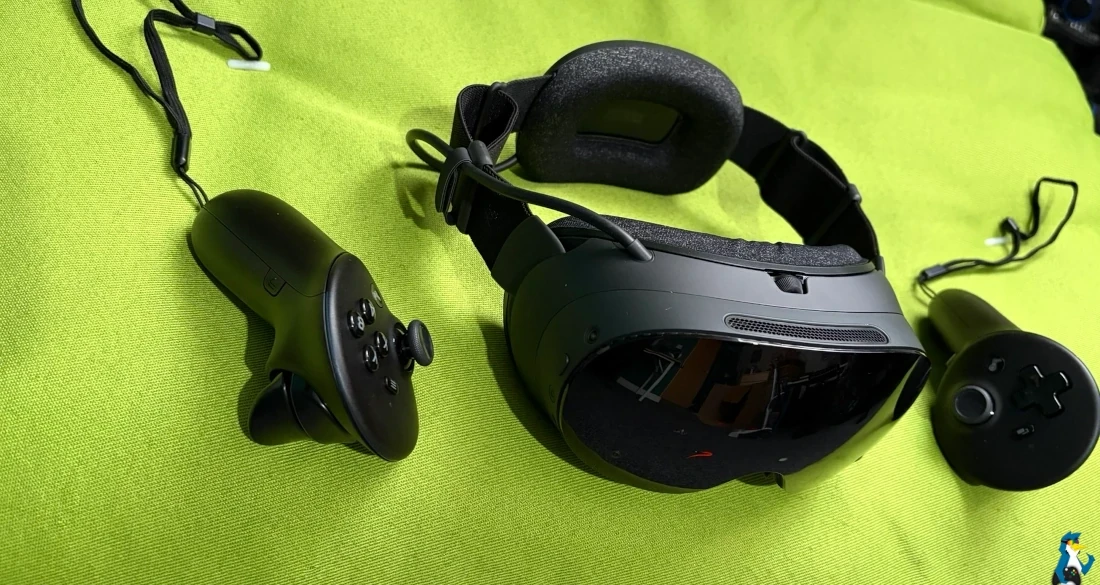
Valve gives you a really brief introduction when you first boot up the Steam Frame, but it's all a bit bare-bones. It doesn't really do much to properly guide you through the various features and settings, leaving you to figure out quite a lot for yourself. Which is not exactly ideal when you've just strapped an entirely new Linux-powered computer to your face.
There's actually quite a lot you can do with the Steam Frame, and some of the more useful features aren't immediately obvious. So, whether you've just received yours or you've been using it for a while, here are some tips and tricks to help you get the most out of it.
Get the best fit before playing
Getting the headset positioned correctly can make a noticeable difference to both comfort and image clarity.
Spend some time adjusting the headstrap, how the headset sits against your face, and the interpupillary distance (IPD) to match your eyes. Steam Frame has an IPD adjustment range of approximately 60–70mm. Although mine is able to go down to 58mm and lock there.
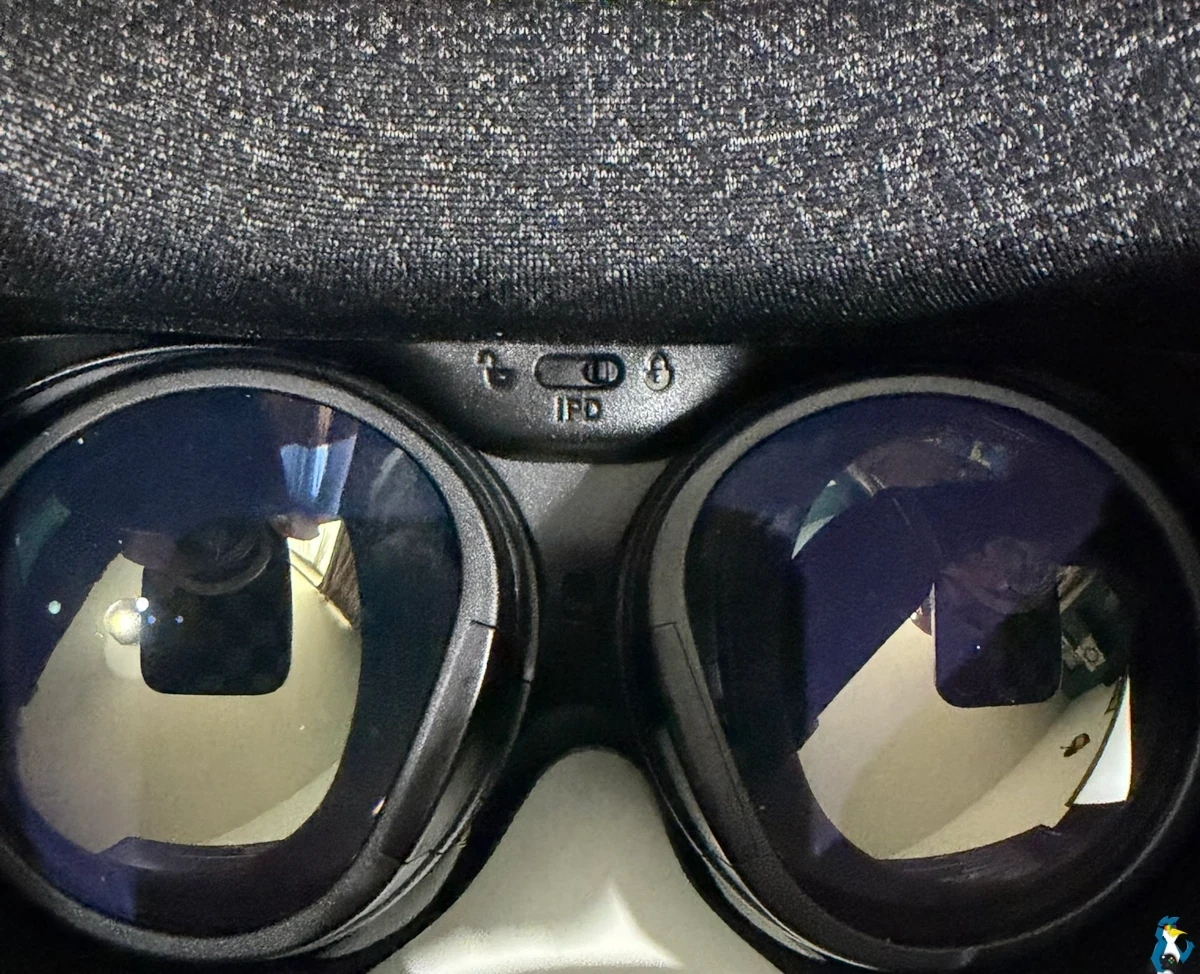
If everything looks blurry, don't immediately assume you need to increase the game's resolution. First, try adjusting the headset's position and IPD. Then you can lock it into place with the IPD lock shown in the picture above, otherwise it will probably move around while you're wiggle around.
Valve also provides official comfort and fitting videos, which are worth watching if you're struggling to get comfortable.
The Steam Frame does include a spacer, which is especially helpful if you wear glasses, to just give that little bit of extra room. Or, if you have wonderfully long eyelashes, it'll stop them tickling the lenses.
Take regular breaks
If you're new to VR, it's worth easing yourself into it rather than jumping straight into hours of intense gameplay. Start with shorter sessions, particularly with games that involve lots of movement. If you start feeling dizzy, remove the headset and take a break rather than trying to push through it. You have to get what some call "VR legs" and build up a tolerance to it.
Make sure you've also configured your play-space correctly, giving yourself enough room to move without hitting furniture or other obstacles.
A small mat or rug in the middle of your play-space can also help you keep track of your position without needing to constantly look around. I fold up a workout mat into a square to stand on, so I can feel exactly when I'm moving off of it and into danger. Simple, but works effectively. Although I've still punched my desk at least once, woops.
Use the headset without any controllers
Lost track of your controllers? Perhaps their batteries have run out? You can still navigate the Steam Frame interface.
Press the Aux button on the side of the headset, just above the power button, to activate a cursor that follows your head movements. You can then use the same button to click on whatever you're looking at. I didn't actually realise that until I hit it by accident.
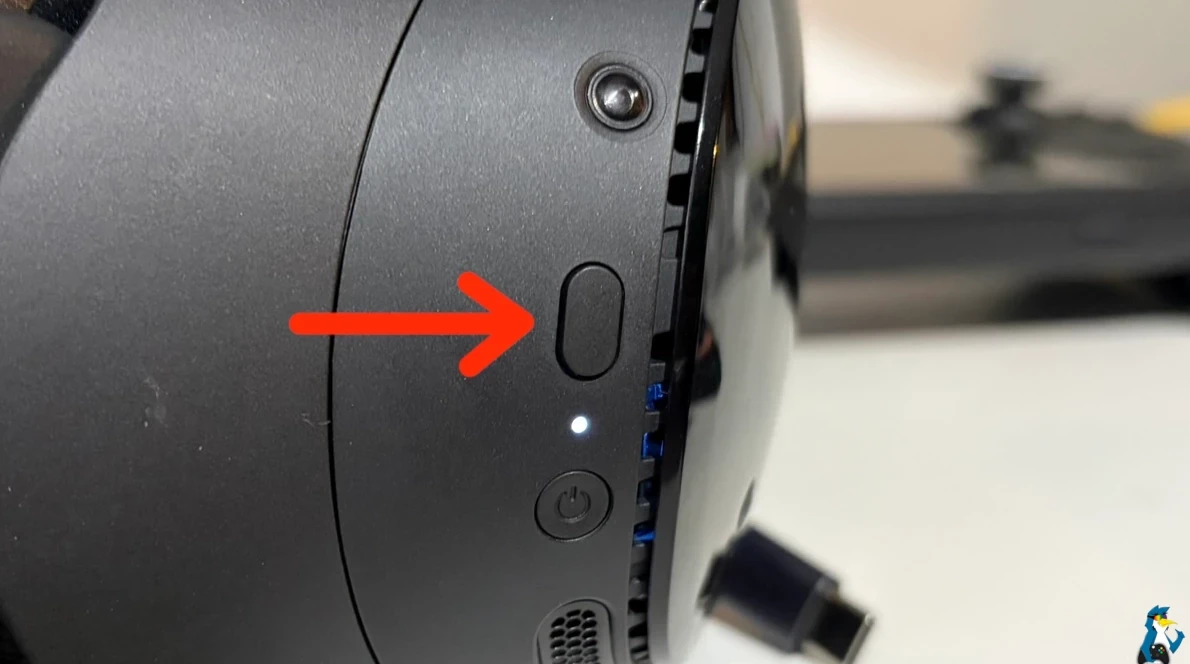
This is especially useful when you just need to change a setting or reconnect your controllers, without having to blindly rummage around the sofa.
Quickly switch to passthrough mode
Need to see what's happening around you without taking off your headset? You can quickly toggle passthrough mode by double-pressing the Steam button on your controller.
You can also double-press the physical button on the side of the headset, which is particularly useful when you've put your controllers down somewhere and can't see where they are. Although, that only seems to work for me if I'm looking at blank space, not anywhere in the UI.
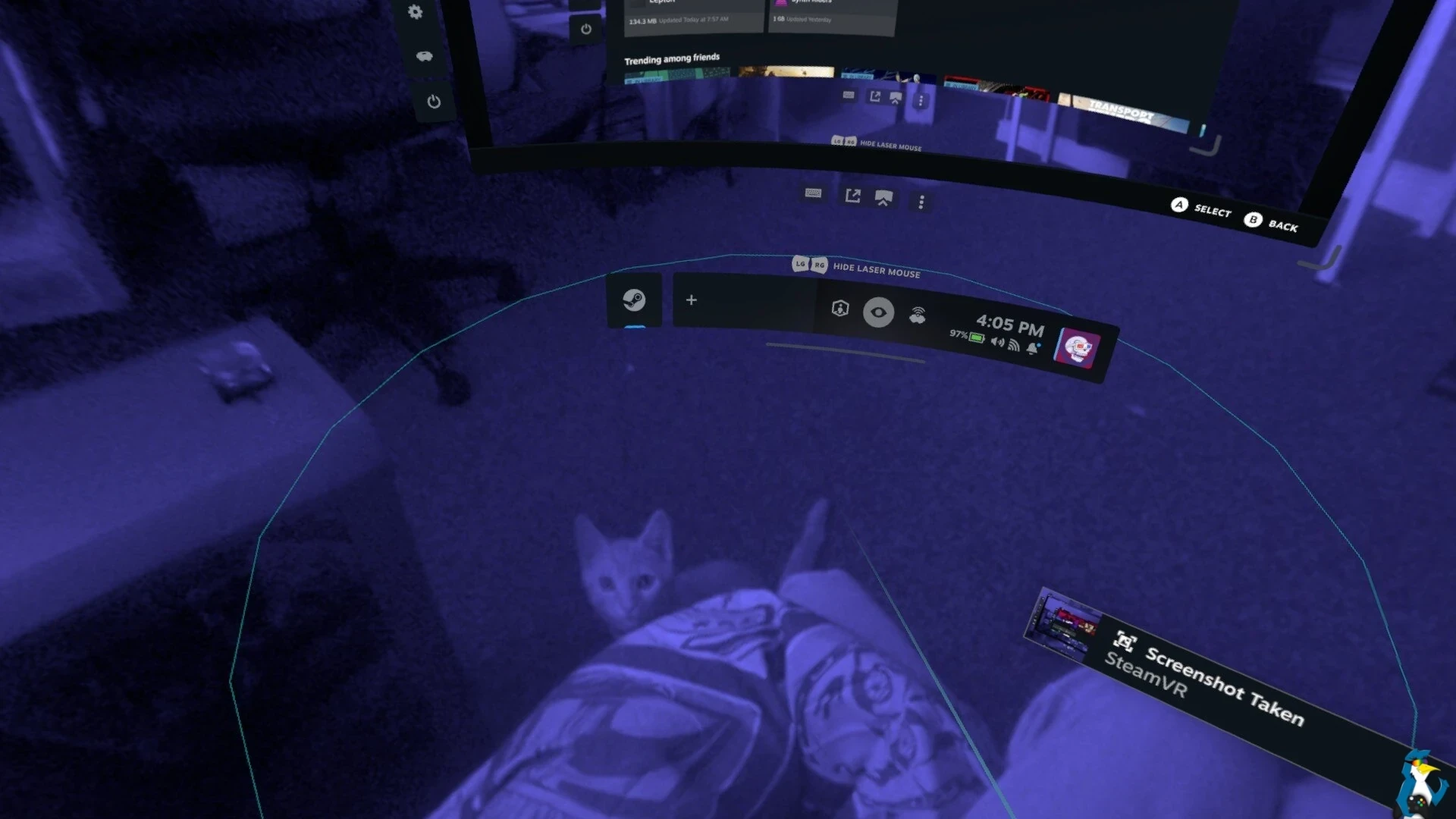
The Steam Frame uses monochrome cameras for passthrough, and thanks to its infrared illuminators, you can even see your surroundings in very low light. The overall quality is a bit rubbish though.
Recentre your view with a button press
If your virtual dashboard isn't facing the right direction, you don't need to go digging through the settings.
Simply look in the direction you want the dashboard to face, then hold down the Steam button until the recentre indicator is ready. Release it, and your dashboard will reposition itself.
You can also adjust your playspace and floor height using the Playspace menu in the VR Dashboard.
Switch between gamepad and pointer controls
The Steam Frame controllers can operate as traditional gamepads or as laser pointers for interacting with the interface.
One easily missed feature is that the grip buttons have two stages. Squeeze a grip button fully until you feel the additional click to activate the laser pointer in the dashboard. This is handy when switching between navigating menus with buttons and directly pointing at things.
Make the most of the included wireless adapter
For streaming games from your PC, Valve recommends using the included 6GHz wireless adapter rather than relying entirely on your normal home Wi-Fi connection.
It creates a dedicated wireless connection between your PC and the headset, helping reduce latency and improve streaming stability.
For the best results, Valve recommends keeping the adapter within approximately 20 feet (6 metres) of your playspace, preferably with a clear line of sight.
If your PC is tucked away under a desk, consider repositioning the adapter so that furniture and other obstacles aren't directly between it and the headset.
Using Ethernet for your PC's network connection is also worth considering to reduce potential network congestion.
Understand what Steam Frame Verified means
Steam Frame Verified is specifically about games that work when running locally on the headset, rather than games you're streaming from a PC.
A game doesn't need a Steam Frame Verified rating to be playable through PC streaming.
Since the headset uses an ARM64 processor and SteamOS, not every game will work locally. Look for the compatibility information on its Steam store page or in your Library before installing it.
For demanding games, streaming from a more powerful PC may still give you a better experience. And just like on the Steam Deck, a game without a Verified badge isn't automatically a lost cause.
Stream games instead of installing them
You don't need to install every game directly onto the Steam Frame. With your PC running Steam, open your Library on the headset and select Stream from your PC using the dropdown on the game's main button.
This works with both VR and traditional non-VR games, giving you access to your PC's processing power without filling up the headset's internal storage.
It's particularly useful for demanding VR games that need considerably more power than the headset can provide on its own. Let your gaming PC do the heavy lifting for a change.
Use Playtime Mode for longer battery life
If you're planning a longer session, take a look at the performance options in the Quick Access Menu.
Steam Frame provides two convenient presets:
- Performance Mode: Prioritises performance over battery savings.
- Playtime Mode: Prioritises longer battery life, potentially at the expense of performance or visual quality.
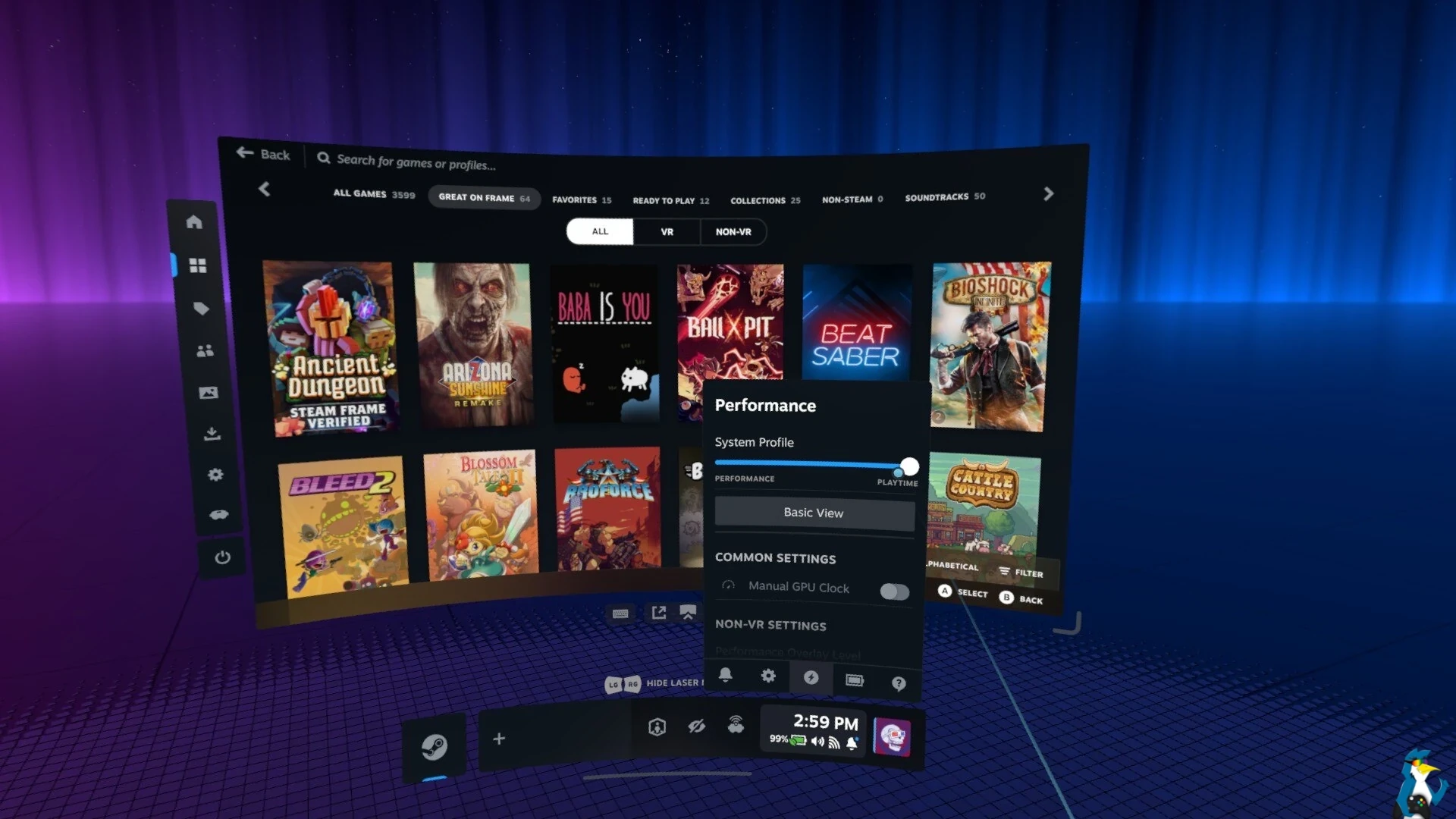
You can switch between them depending on what you're playing.
For a lightweight game or a bit of casual browsing, Playtime Mode may be all you need. For demanding standalone VR games, Performance Mode is worth trying if you're experiencing problems.
How to take screenshots
Press the Steam button + right trigger (R2) to capture a screenshot. You can find your captures in the Media section of Steam's interface on the headset, where you can then upload or share them.
Expand your storage with a microSD card
Steam Frame supports microSD cards, so you don't have to rely entirely on its built-in storage. It's a little bit hidden though, Valve love to make us treasure hunt. The microSD slot is tucked away underneath the magnetic face gasket, near the brow of the headset and beside the IPD lock switch.
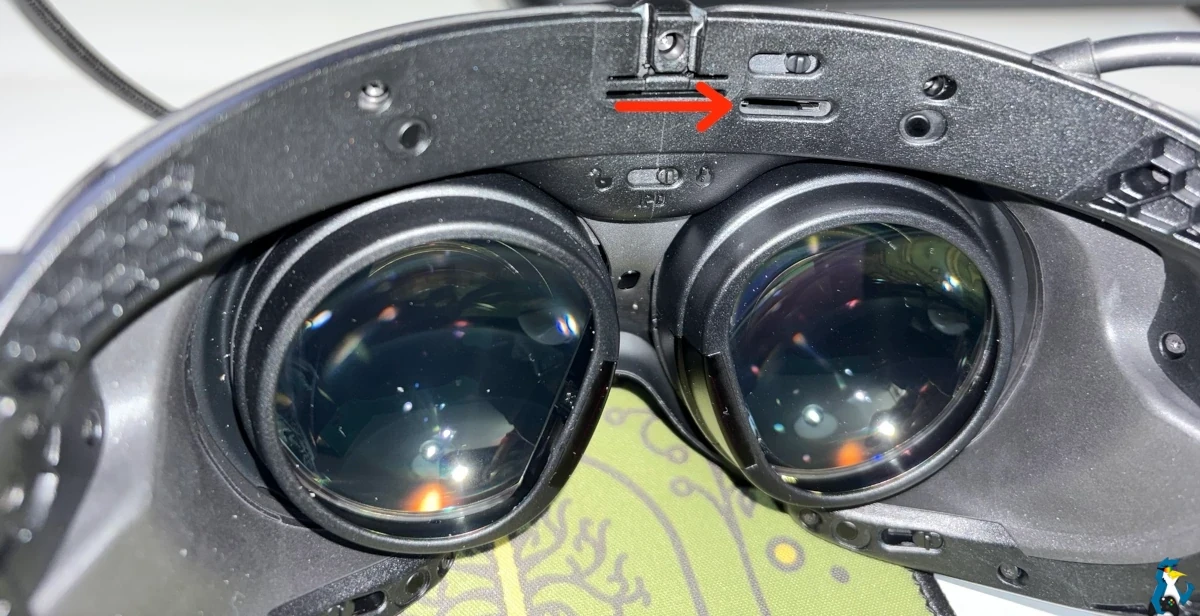
Once you've inserted a card, head to Settings → Storage, select the microSD card and choose the option to format it if needed.
Valve supports UHS-I U3 or better cards. Faster UHS-II and UHS-III cards should also work, but their additional transfer speeds aren't supported.
There's another useful trick here: if you have a microSD card already configured as Steam Library storage for a Steam Deck or Steam Machine, the Steam Frame should instantly recognise the installed games without needing to format the card again. Naturally, the games still need to be compatible with the headset to run locally.
Access the full Linux desktop
Yes, you can use a Linux desktop in VR. Just like the Steam Deck, the Steam Frame runs SteamOS and includes a full KDE Plasma desktop.
To access it, open the dashboard menu, select + (Launch Program) and choose Desktop. This launches a Linux desktop environment that you can interact with using your controllers. Although it's a bit fiddly once you're in it.
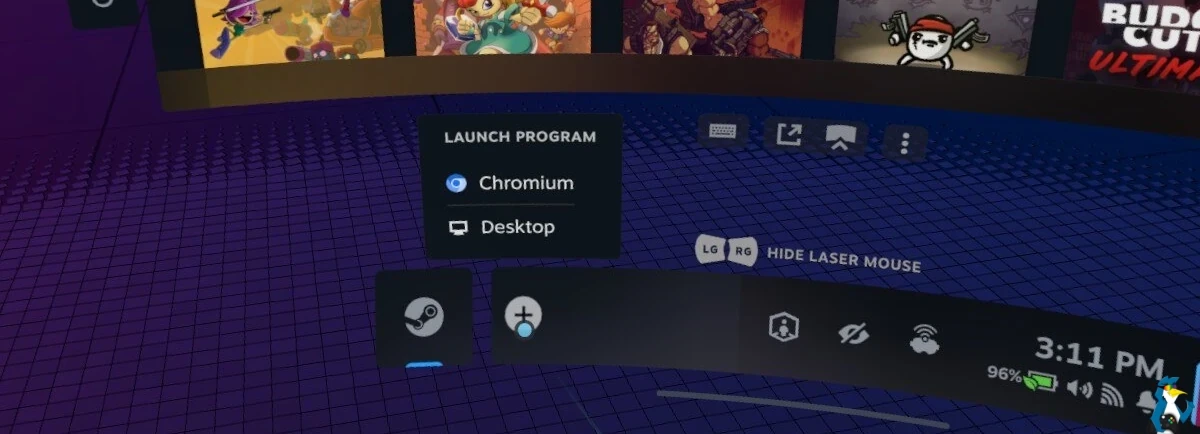
The controller acts as a laser-pointer mouse, with the trigger providing a left click and pressing the thumbstick providing a right click. Applications launched from the desktop can also appear in the dashboard, making it possible to switch between them and other open applications.
For anyone interested in doing more than gaming, it's an especially interesting feature of Valve's headset.
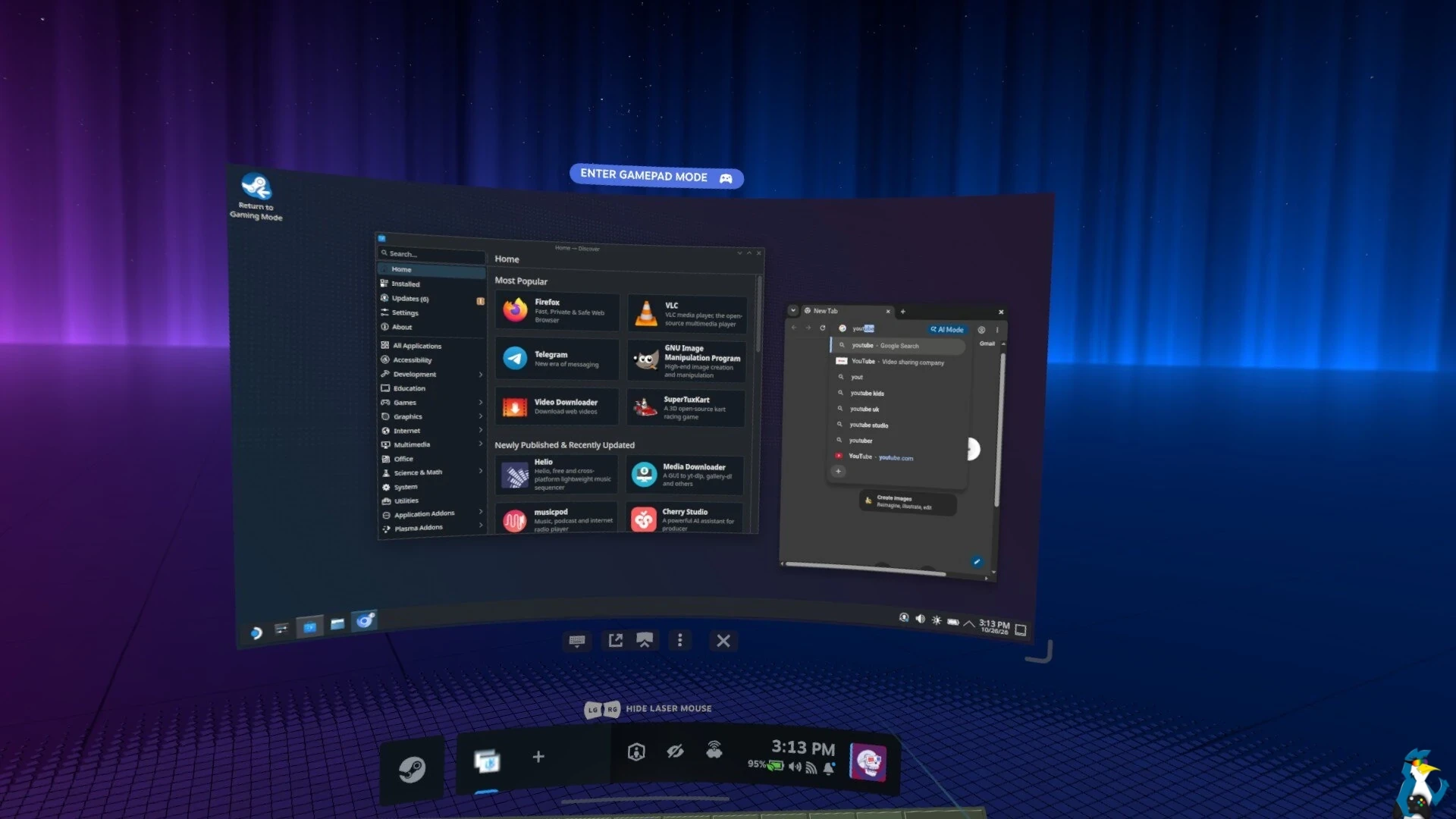
Whether you actually want to start editing spreadsheets with a headset strapped to your face is another matter entirely. But it opens up the Steam Frame to be a whole new type of VR platform, especially when compared to some more locked-down rivals. The Steam Frame is your device - do what you want.
Move the UI around / Zoom-in and Zoom out
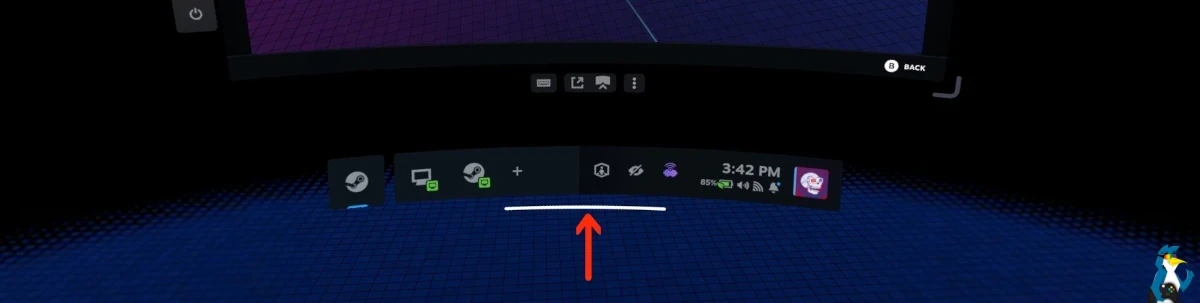
Another quick tip while you're here. In the UI you'll see a grey bar at the bottom by itself. You can click and hold that to move windows around, and pull them closer or push them away.
Connect a traditional gamepad
While the Steam Frame controllers are designed to handle both VR and traditional gaming, you might prefer using a regular gamepad for non-VR titles. Steam Frame supports pairing Steam, Xbox, PlayStation and Nintendo Switch Pro styled controllers, all thanks to Valve's powerful Steam Input.
Head to Steam Settings → Controller → Add Controller, then follow the pairing instructions.
This makes the headset a useful way to play traditional games on a large virtual screen without needing to hold a pair of VR controllers.
Fix problems with the headset turning its display off
If your Steam Frame keeps turning off its displays while you're wearing it, the presence sensor could be the cause. Valve added a configurable sensitivity option under:
VR Settings → Startup / Shutdown → Presence Sensor
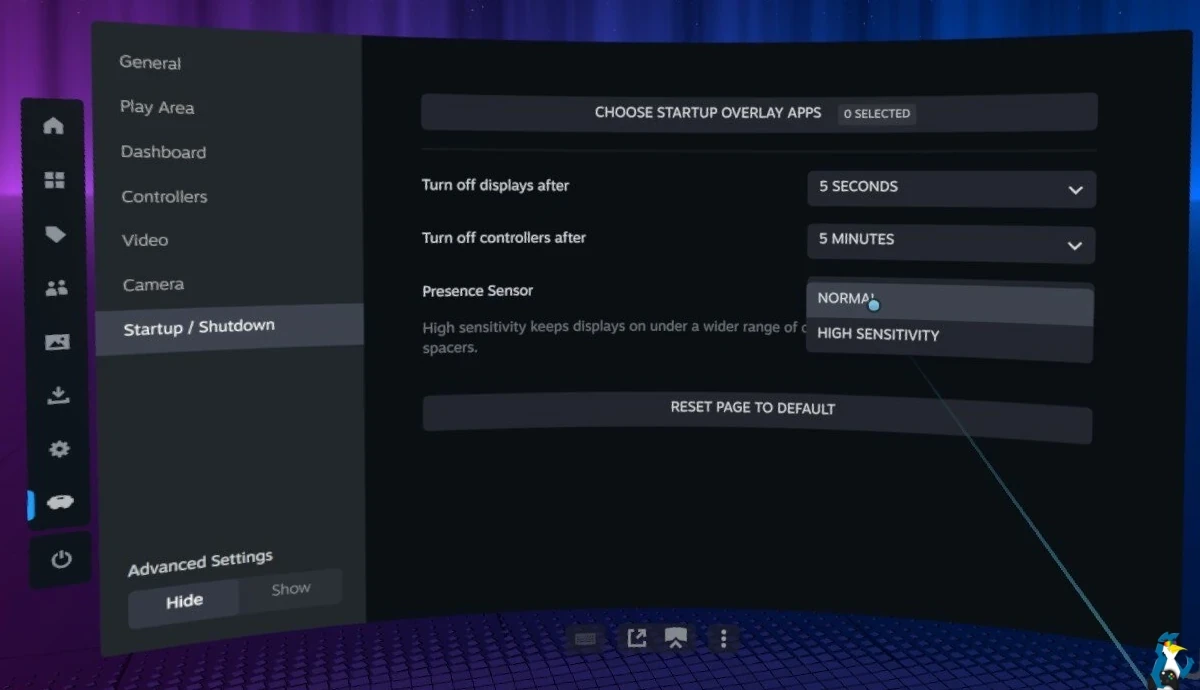
Try the High Sensitivity option if the headset is struggling to detect that you're wearing it, especially if you're using a glasses spacer or a different fitting arrangement.
It's a better option than attempting to cover or physically modify the sensor.
Let someone else see what you're playing
If you're showing off VR to friends or family, you can let them watch what the person wearing the headset is seeing.
Steam Frame supports a spectator view, accessible on your PC through Steam → Settings → Remote Play.
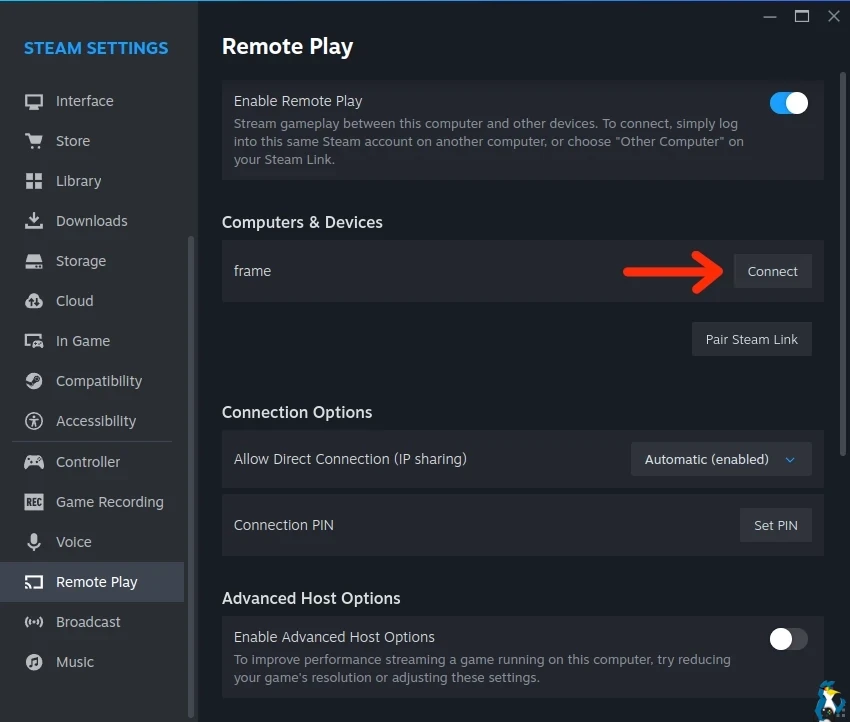
Valve added smoothing for the spectator view to make the experience more comfortable for anyone watching. Now everyone can see why you're suddenly shouting at absolutely nothing while flailing about in the living room.
You can also use another device that supports Steam Link to view the headset's output.
Improve controller tracking
Steam Frame uses cameras, motion sensors and infrared tracking, so you don't need external base stations. However, your environment can still affect tracking quality.
If you notice your controllers drifting or jumping around - check for reflective surfaces, bright decorative lighting and anything blocking the headset's cameras or controller sensors.
Valve also recommends removing sources of infrared interference. If tracking problems persist, restart the headset and controllers, and consider replacing their AA batteries.
Each controller uses a replaceable AA battery, with Valve quoting approximately 40 hours of use.
Keep SteamOS and SteamVR updated
Steam Frame is still receiving regular improvements, so keeping everything updated is particularly important.
On the headset, check Steam Settings → System → Updates. If you're streaming from a PC, make sure Steam and SteamVR are updated there too.
Valve's SteamVR 2.18 release included numerous streaming improvements, fixes for connection problems and better handling of the Steam Frame controllers in games that don't support VR-specific inputs.
You can also opt into the Steam Frame Beta update channel under Settings → System → System Update Channel if you want to try newer fixes before they reach the stable release. Just keep in mind that beta software can introduce additional bugs.
Sometimes it's nice when everything simply works, so there's no shame in sticking with stable updates.
Linux PC streaming may need extra work
Although Steam Frame itself runs SteamOS Linux, streaming PC VR from a desktop Linux system is still a bit of a work in progress. SteamVR on Linux continues to improve, but don't assume every PC VR game or streaming setup will work without a little tweaking.
You might need to launch SteamVR on your Host PC first, for everything to get connected up properly. For the included wireless adapter, Valve lists Linux kernel 7.2 or newer as a requirement for desktop Linux, or SteamOS 3.9 or newer for the Steam Machine.
If you're having problems getting the adapter working on Linux, Valve also provides a diagnostic script that can check for common issues with drivers and wireless configuration.
Truly stuck with Linux streaming? Come and ask for help in our Forum.
Fix stuttering when streaming from your PC
If you're getting random stuttering, lag spikes or freezing when streaming games from your PC, there's a special setting worth trying.
Steam Frame uses a feature called Multi-Link, which allows the streams to use the included wireless adapter and your normal Wi-Fi connection together. While useful, some players have reported that it can cause noticeable stuttering when switching between connections. This will all very much depend on your router, playspace and more.
To try fixing this, start streaming from your PC, open the Steam Frame dashboard and head to Steam Link → Advanced Settings → Allow Multiple Links, then disable it.
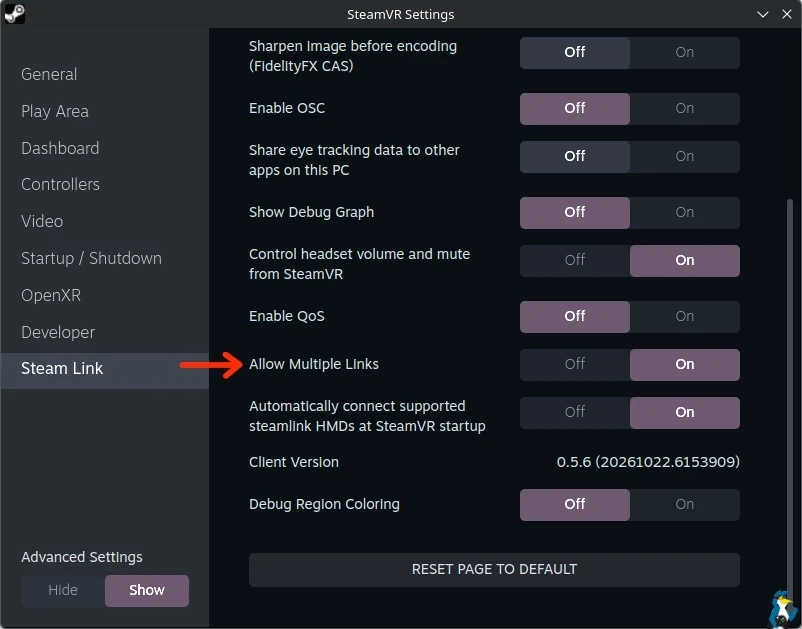
It's not guaranteed to fix every problem though, and you should check that streaming is still using the dedicated wireless adapter afterwards, rather than your normal Wi-Fi.
Keep the headset charged properly
Steam Frame supports USB-C charging at up to 45W. So make sure you have a decent enough charger ready for it. A full charge is around 1.5-2.5 hours depending on how far drained it is.
If you're planning to be away from a power socket, a suitable USB-C power bank is another option worth considering. Just again, make sure it's a decent one with enough juice. You'll likely need more than 45W to play and charge at the same time.
Don't forget that the controllers have separate replaceable AA batteries, so keeping some charged spares around is useful.
Protect the lenses from sunlight
One particularly important thing to remember with VR headsets: never leave the lenses exposed to direct sunlight.
The lenses can focus sunlight onto the internal displays and permanently damage them, even when the headset is sitting indoors near a window.
When you're finished playing, store the headset somewhere cool and dry, with the lenses safely facing away from windows.
For routine cleaning, use a clean, dry microfibre cloth and avoid applying excessive pressure to the lenses.
Completely shut down the headset when you're finished
Sleep mode is great, but it can be a little finicky at times. Much like the Steam Machine and Steam Deck, there's a few ghosts in the machine, and you might come back to find it roasting. Especially bad if you're storing it in a case.
A useful precaution is to shut it down completely for longer periods of inactivity, rather than leaving it asleep.
Final thoughts
There's a lot more to Steam Frame than simply putting it on and launching a VR game. Between the Linux desktop, wireless PC streaming, traditional gamepad support and various hidden shortcuts, it's a very flexible bit of gaming hardware.
Valve is also continuing to expand and improve the software, so it's worth keeping an eye on updates for new features and fixes. We have a dedicated Steam Frame tag and RSS feed you can follow for that.
And if nothing else, it's another wonderful excuse to add even more games to your Steam backlog. As if any of us needed one, right? I have hundreds still to play…when I retire perhaps.
Have you discovered any other useful Steam Frame tricks? Share them in the comments so everyone can benefit. And if they're truly useful, I may add them into this guide! As always, our guides here at GamingOnLinux evolve over time to keep them up to date so be sure to check back.



See more from me


 You can also find comments for this article on social media:


 RavenWings 28 Oct 2026


 Patreon
 PayPal