The new Steam Controller launched today and thanks to Valve providing GamingOnLinux a review unit, I've been able to put it through some Linux testing before it released.
I'm still sad that the world-burning AI companies have caused the Steam Machine and Steam Frame to be left behind a little, but hopefully we won't be waiting too much longer on more info for their releases. I would love to have the complete set here for testing alongside my Linux Desktop, Steam Deck and first-gen Lenovo Legion Go with Bazzite.
Anyway, you want to know what the new Steam Controller is actually like, that's why you're here right? Let's get down to it. Keeping in mind this is only an initial look for what I had time for during the ~5 days I've had it.
First thought when picking it up - gosh, it just melted right into my hands. My biggest worry about it really was the size of it. For all the talk about big or small hands elsewhere, I can pretty much guarantee you my hands are smaller than you think. And yet, it feels fantastic.
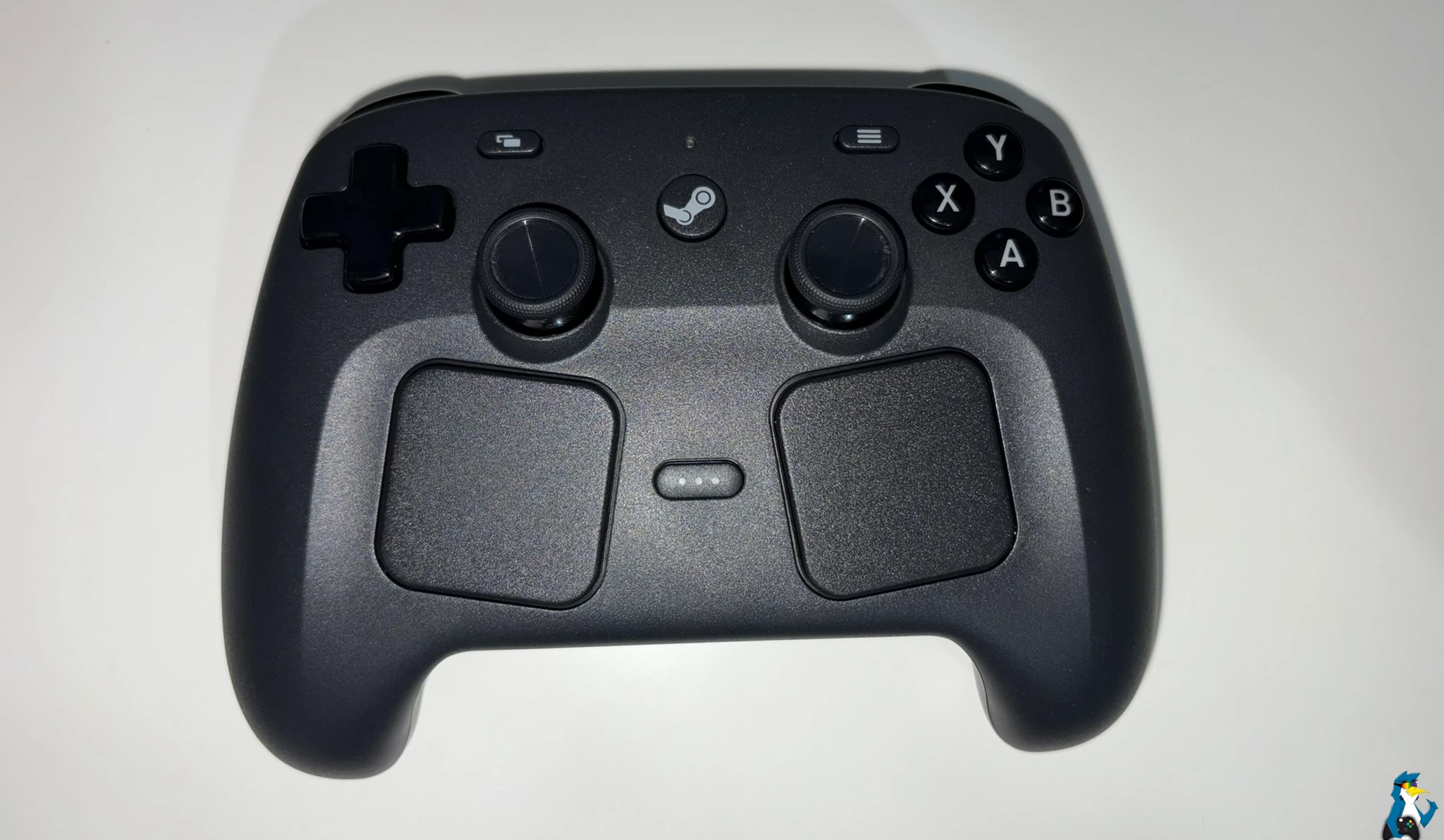
Pictured - the new Steam Controller
Much like the Steam Deck, it's designed to be repairable and easily opened. Just a few screws, and the casing will pop right off. Valve already confirmed spare parts will be available on iFixit, we just don't know exactly when that will be. So it's designed for the long-term and it's your device to open up and tinker with.
The Full Specifications
|
Gamepad controls |
A B X Y buttons D-pad L & R analog triggers L & R bumpers View & Menu buttons Steam & QAM buttons 4x assignable grip buttons |
|
Thumbsticks |
2x full-size magnetic thumbsticks (TMR) with capacitive touch |
|
Haptics |
4x haptic motors
|
|
Trackpads |
2x 34.5mm square trackpads with haptic feedback Pressure-sensitive for configurable click strength |
|
Gyro |
6-axis IMU |
|
Grip Sense |
2x capacitive areas along back of Steam Controller handles |
|
Steam Controller Puck |
2.4GHz Wireless connection ~8ms full end-to-end, 4ms polling rate (measured at 5m) Up to 4 Steam Controllers per Steam Controller Puck Steam Controller Puck connects to PC via USB-C |
|
Bluetooth |
Bluetooth 4.2 minimum, 5.0 or higher recommended |
|
USB |
USB-C tethered play |
|
Charging |
Steam Controller Puck charging interface USB-C connector |
|
Battery |
8.39 Wh Li-ion battery 35+ hours of gameplay* Battery life for tracked gameplay with Steam Frame is reduced |
|
Size |
Steam Controller: 111mm x 159mm x 57mm Steam Controller Puck: 50mm x 28mm x 9mm |
|
Weight |
Steam Controller: 292 g Steam Controller Puck: 16 g |
Setting Up The Steam Controller
Before starting - you should ensure your Steam Client is fully up to date, as there's some important updates for the Steam Controller included.
My main test system for this is my Desktop running Fedora KDE 44 (the current Linux distribution I suggest for gaming) with Linux kernel 6.19.14.
Thanks to a recent stable Steam Client update, the initial setup is impressively simple and works perfectly on Linux. Plug in the dongle via USB, turn the controller on and Steam will prompt you to do a firmware update on each that's done directly through the Steam client. You need to do the dongle first, then swap the cable to the controller. Both updated without issue, and it was surprisingly quick too.
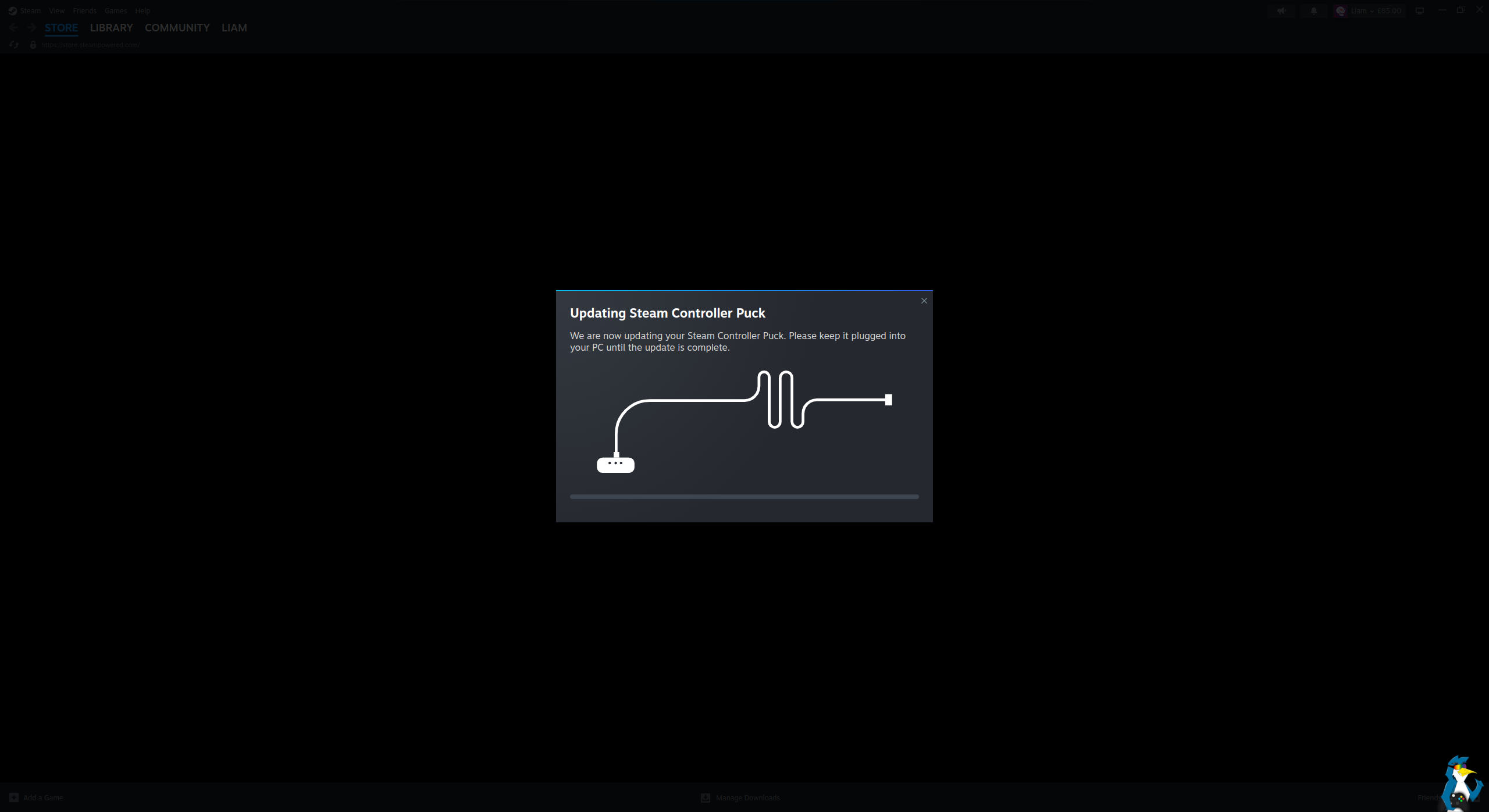
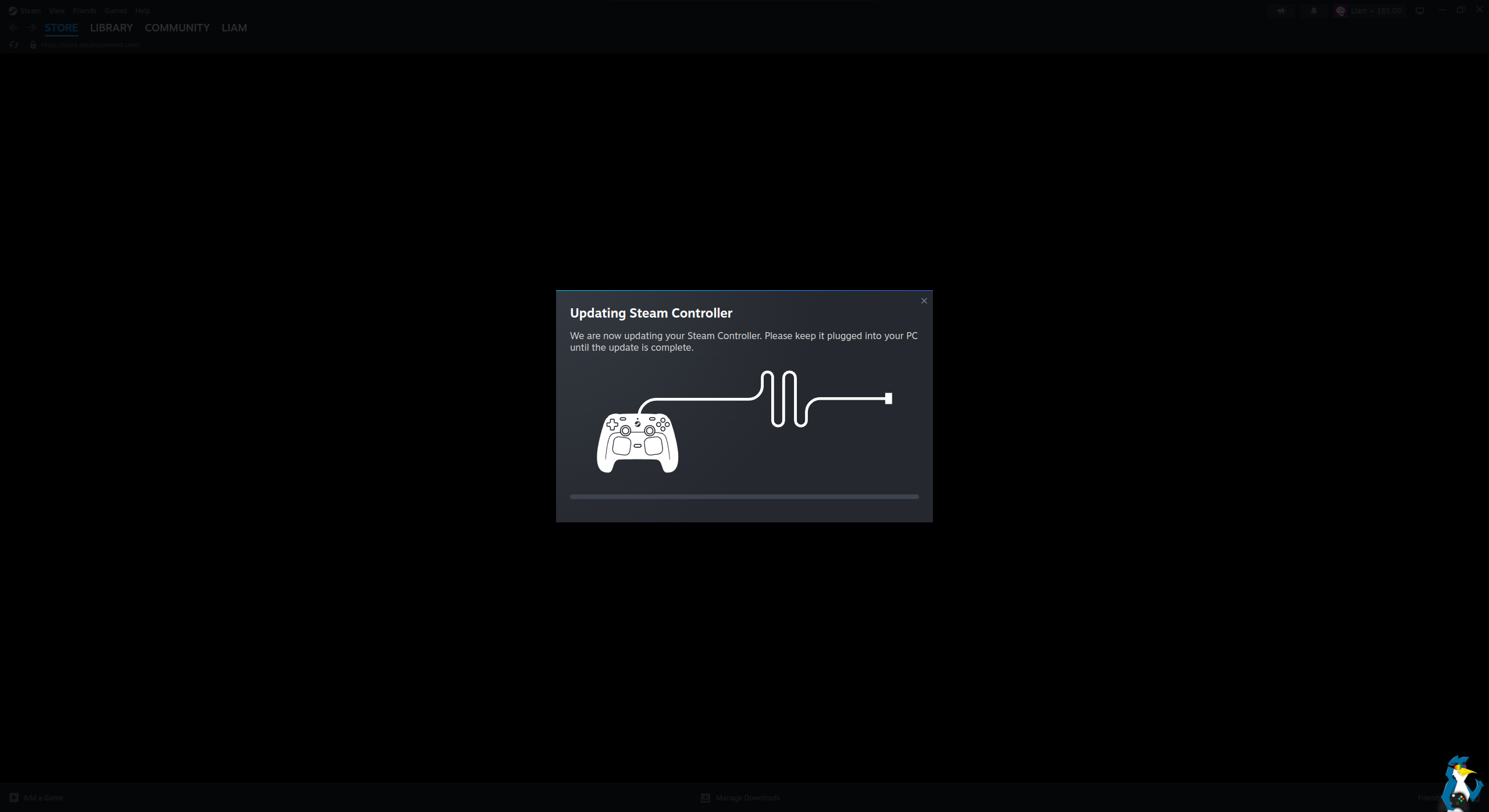
Pictured - Steam Controller and Puck firmware updates
After that's done, you're completely ready to go. Although, you may want to do a full charge first to get the most out of it. I know, difficult to do when you have new tech but it's worth it to get it up to full.
A little quirk I noticed here, is that every time I first connected it up to a different system like my Steam Deck or Lenovo Legion Go, it would pop up a notice about the Steam Controller firmware but then instantly say it's ready to go. Seems like Valve need to tweak that check to just be ignored if they already detect the firmware is up to date rather than giving people pointless pop-ups.
Battery Life & Charging
Charging is done simply by using the included Puck, which also acts as the 2.4GHz wireless connector for no-fuss connecting. The Puck is magnetic, so you just hover the Steam Controller over the top and it will snap up to it and begin charging. No messing around, nice and simple. The Puck also has a rubber pad all around the bottom, so it won't slide about your desk or TV unit.
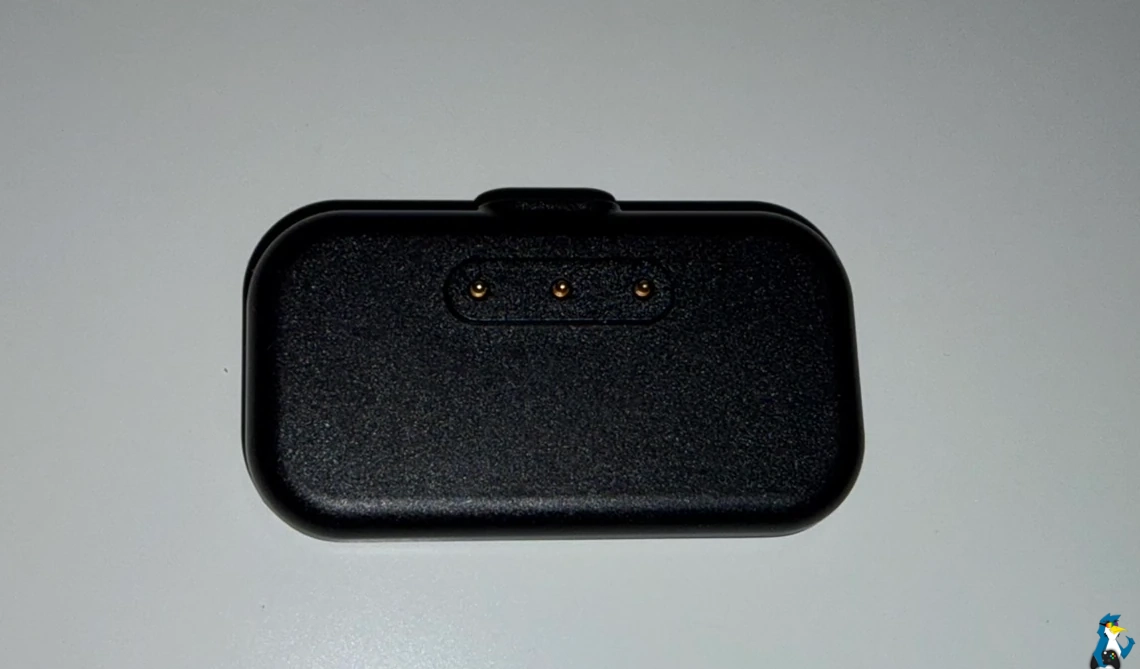
Pictured - Steam Controller Puck
For testing battery life, I ensured it was charged up full across an entire evening and overnight just to be as thoroughly sure as possible on giving the battery every drop of juice. I tried to go for something resembling natural real-world usage here as much as I could. Gaming every possible moment using it, but also "forgetting" to turn it off and just putting it on my desk to let it turn off automatically.
My testing showed the Steam Controller managed to hit approximately 19 hours 1 minutes to get to half battery. That's including 3 nights of it being left turned off on my desk so it would also slowly discharge as all batteries do when left alone. So Valve's specifications at 35+ hours seems quite accurate.
The exact battery level isn't very clear though, because you only get the small battery level indicator and no rough percentage left anywhere that I can see. Not in the settings, not on hovering the battery indicator. Hopefully Valve will add this as an option like you can do for the Steam Deck battery. Thankfully, the indicator is not just in Big Picture Mode, if you simply bring up the standard desktop Steam Overlay by tapping the Steam button there's a battery level indicator in the top left in the normal Steam Overlay too.
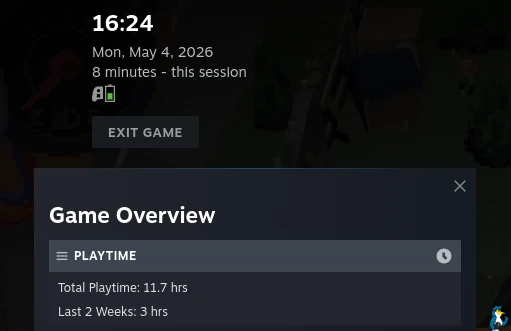
Given the battery time from full charge to near enough empty, that seems really good to me. Especially since I imagine a lot of people like me will usually just stick it back onto the Puck when done with it. But for those times you don't do that, or you're travelling or whatever - that battery time is good. Time enough for even the longest most intense gaming session to never worry about the battery running dry. No mad scramble to find a cable.
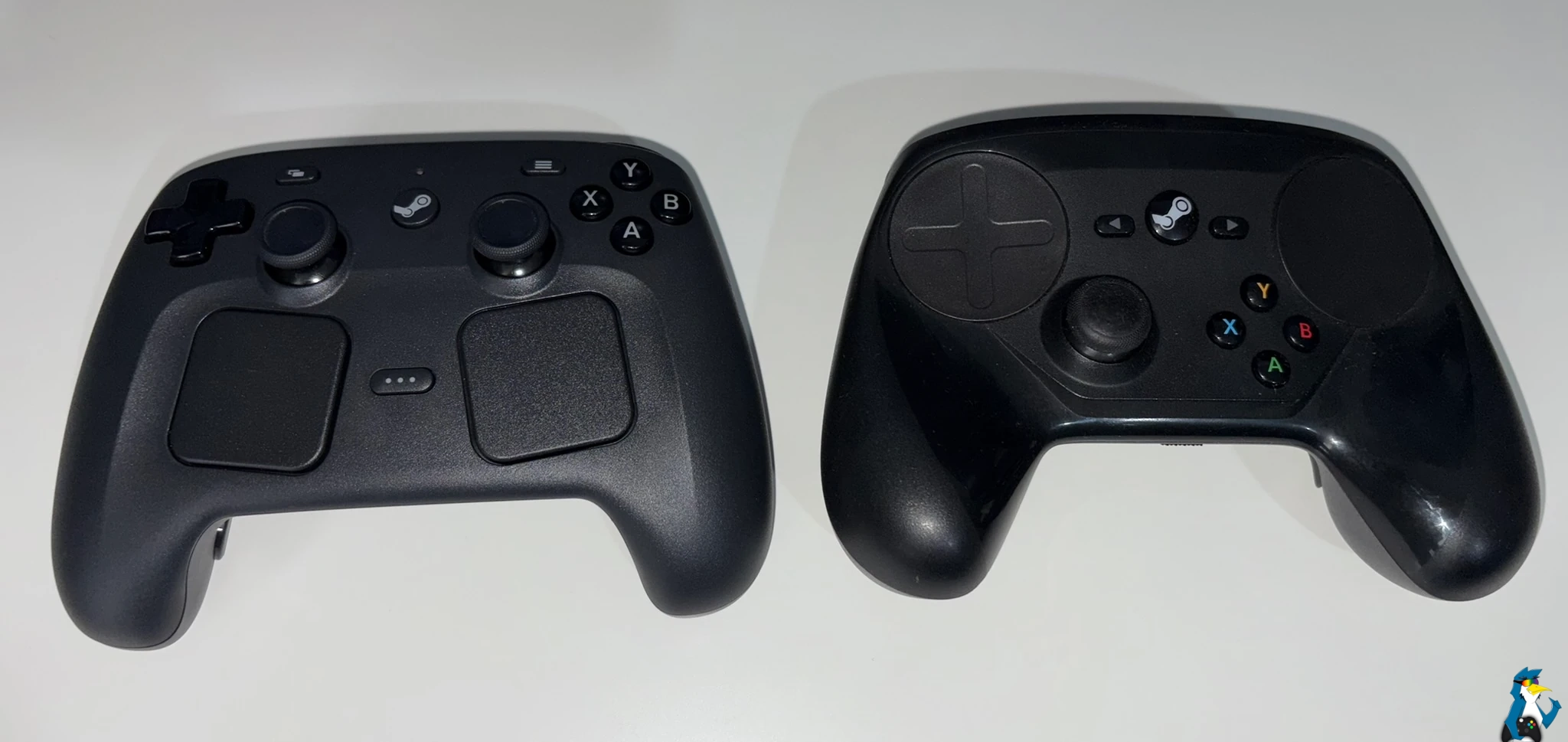
Pictured - new Steam Controller (left), original Steam Controller (right)
General Thoughts
The trackpads are what make it look pretty chunky, but all those worries about the size faded away instantly thanks to how incredibly comfortable it is to actually hold. Valve clearly did their homework here when it comes to ergonomics and design, a lot of which is thanks to all the work on the Steam Deck and it really shows here.
It's like a night and day difference in the quality to the original Steam Controller. I'm still incredibly fond of the first generation Steam Controller, after owning two of them, but it never really felt like a premium device. The awkward battery placement and levers to push them out was a real nuisance too. The new Steam Controller though - it doesn't just look premium, it definitely feels it too. It's smooth all over, with a very slight rough texture to it and no sharp edges anywhere on the shell that I could feel - so no annoying little bits to catch your skin on. Perfect for long gaming sessions in terms of overall comfort.
The original Steam Controller now seems like the weird spotty teenager when compared with the new one, it's quite the glow-up for the second generation.
Reaching and pressing the grip buttons on the back has also been no problem at all, actually much easier to reach and click than the ones on the Steam Deck.
Another surprising thing is that holding it to use the trackpads as the main input is also quite comfortable. For those games that need them like strategy / RTS when you're constantly using mouse input where the trackpads are the way to go, resting your thumbs there the whole time is absolutely fine. Your hands sit a bit lower on the Steam Controller for this of course, but I played a good while of Command & Conquer Remastered Collection doing a bunch of missions and had no issues at all. Once I adjusted the scroll speed, and set the Right Trackpad to have less friction on the Trackball setting so input rolls over a bit more - selecting and moving units around was very comfortable.
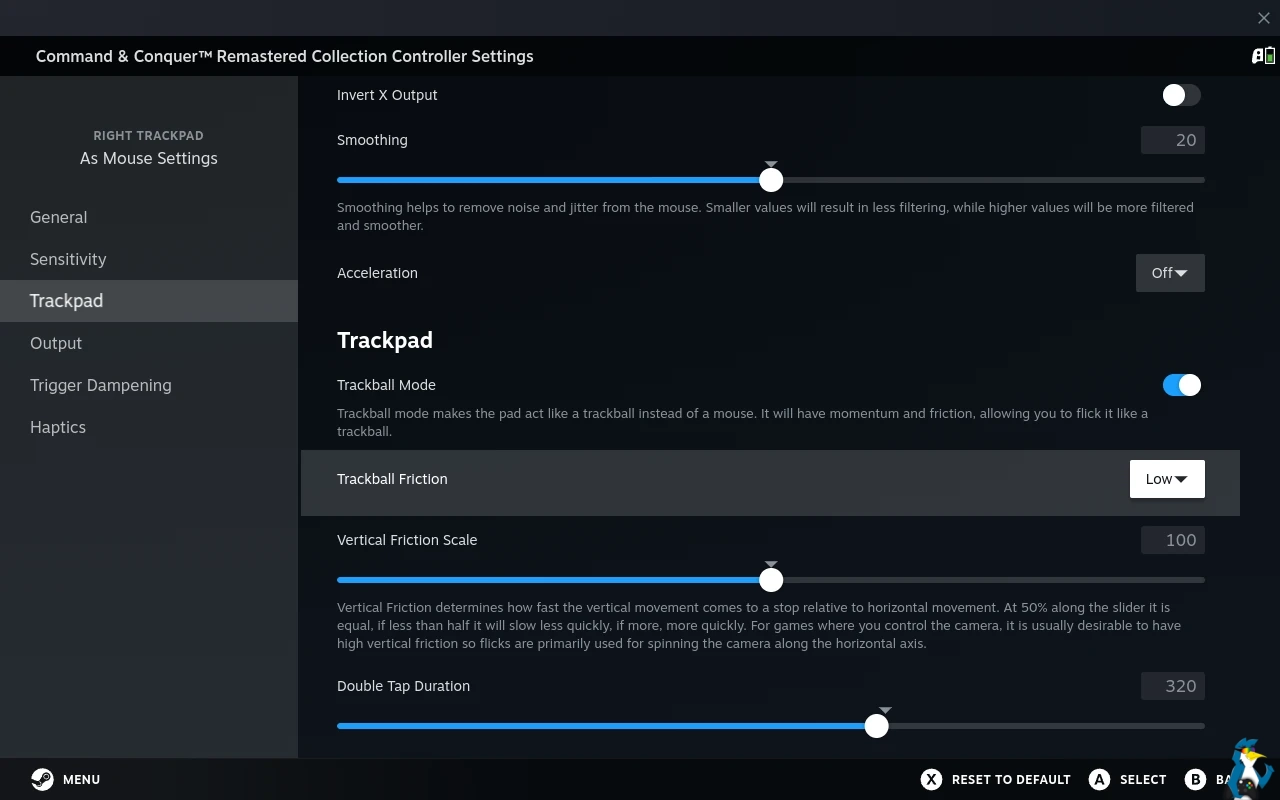
Given how comfortable it is with RTS games, I'm going to be playing a lot more on either my Steam Deck or Lenovo Legion Go from the sofa. That's really the key thing with the new Steam Controller - every type of game becomes so much more accessible. It gives you options to play everything how you want. Using the Trackpads for unit selection and movement, shoulder buttons for zooming in / out and D-Pad for scrolling the map (without having to mouse-edge the screen) and it feels like such a fantastic fit.
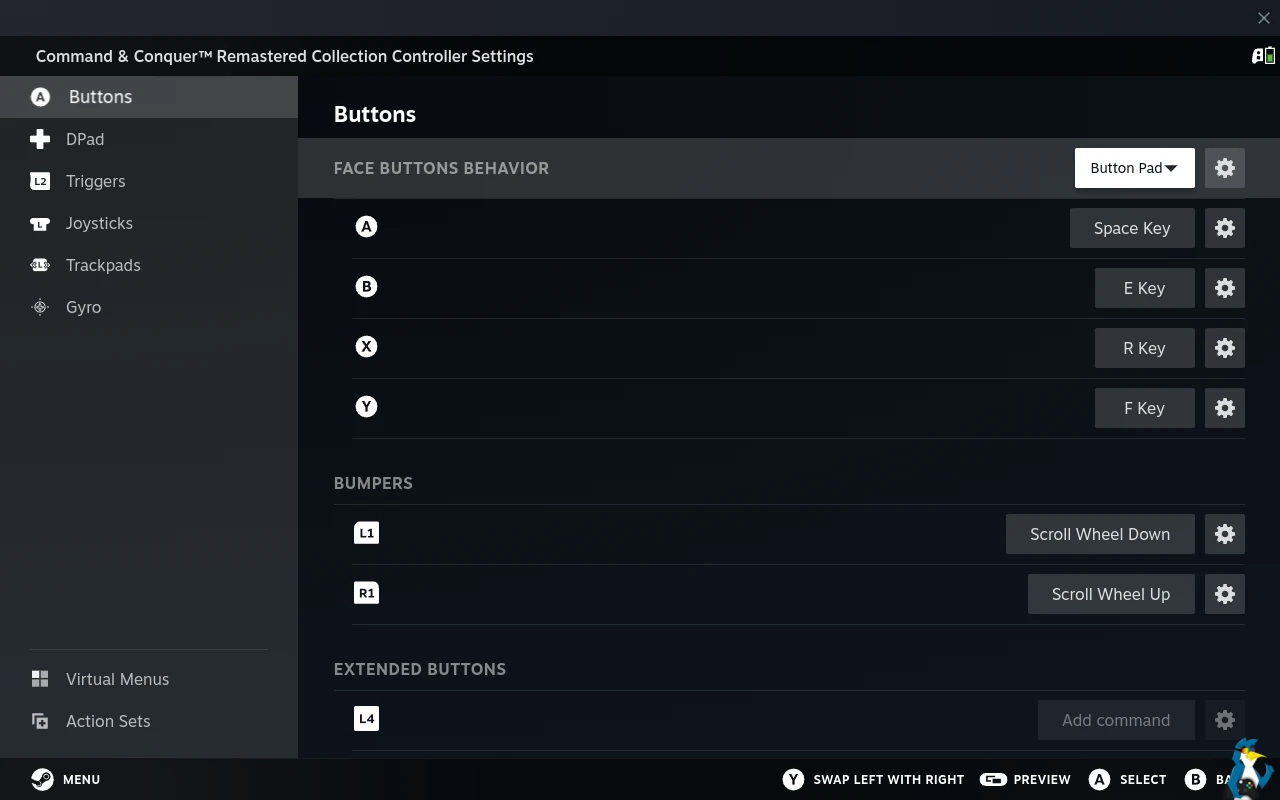
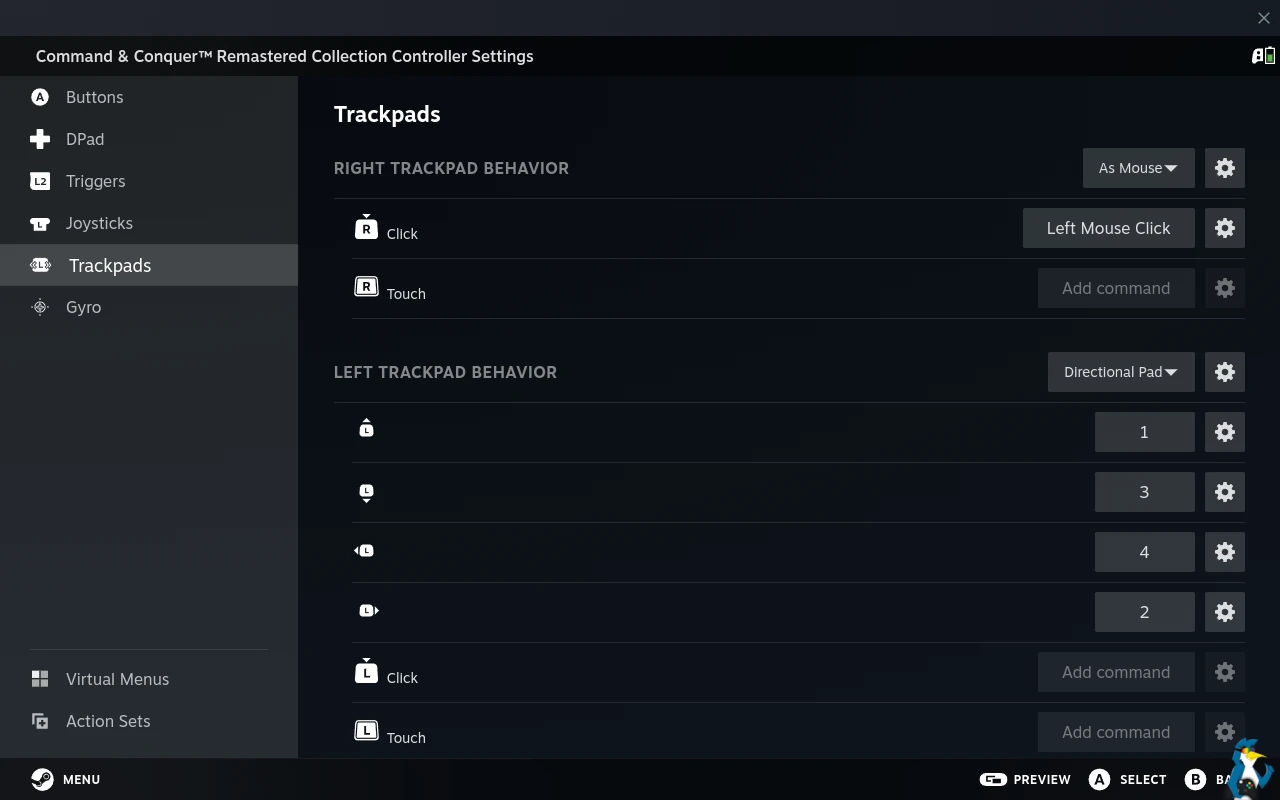
Steam Input is something you likely already know quite well if you've used Steam with a gamepad. With the new Steam Controller built for Steam Input, changing any buttons to do whatever you want is extremely simple. Even for games that have partial or zero controller support, this is where Steam Input and the Steam Controller can really shine. You can adjust every button, stick and thumbpad to your liking across any number of combinations.
For Linux gamers this is especially good. There's tons of other gamepads out there that are cheaper, and have extra buttons, but most of them cannot have their extra buttons configured in any way under Steam Input (or at all on Linux). Here, everything works out of the box and can be configured. So for Linux, it is probably the most configurable and best supported gamepad around. For everyone else - there's simply nothing else like it.
What has impressed me (for once!) is the Gyro feature. This is actually the first time I've ever actually gotten along with it. I've never really liked Gyro controls before. It feels overly awkward on the Steam Deck due to the size, and previous controllers I've tried with it just never seemed to click with me. But here, it's finally coming together in my mind on how I can actually make use of it in a way that works for me. Part of that is simply the power of Steam Input.
For first-person shooters what I did initially is set it so I could activate the Gyro as a mouse pointer any time I held down the Top Right Grip Button (R4) on the back. This gave me the best of all worlds - I could use either the Right Stick or Right Thumbpad to aim depending on how I felt and what game I was playing, and then to fine tune that perfect shot I just clicked in a finger on the back to activate the Gyro to move the camera a little more naturally. And, as confidence grew, I then decided to switch it up to have Gyro as a toggle for fully on or off with that button tap and ended up using Gyro a ton more.
Along with the power of Steam Input - the other part is simply the design of the controller, everything just feels like it fits so well to allow me to actually use all my fingers and keep messing with Steam Input to do all the things I want in a way that's really comfortable. I cannot overstate just how good the controller shell and button placement is.
One issue that has come up is when using any of the inputs as Mouse / Keyboard for example: Gyro Mouse aim or Trackpad as Mouse as you have to approve the interaction via a pop-up otherwise it doesn't work with Steam. This issue on Linux was reported to Valve from someone with an Xbox controller back in January 2024, and now also appears with this new Steam Controller too. Hopefully this will be made smoother at some point. It confused me for a while, because one day it just didn't seem to work, but I didn't see the pop-up appeared on KDE Plasma behind the game I was playing. So it's just something to keep in mind.
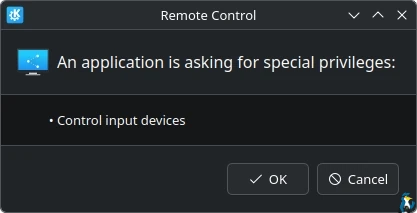
Especially annoying on Desktop when at times having to do this repeatedly. Side-note: this doesn't happen on SteamOS with the Steam Deck, and it doesn't happen on Bazzite either as they have patches for it.
I have something resembling an addiction brewing to Overwatch (I blame the bonus daughter for that). So I was hoping to use the Gyro a lot here since I'm really liking it with the new Steam Controller. Annoyingly though, some games really don't like the mixture of Controller input with Keyboard/Mouse input at the same time. Using Overwatch as my example, it will randomly drop the FPS by a good 30FPS and stutter if I use Gyro (Mouse) for aiming together with the Left Stick (Gamepad) for character movement. When it does work fully, it's a beautiful thing.
A similar issue is observed in Dying Light 2 Stay Human: Reloaded Edition. If you try to enable the Gyro for Mouse aim in any way (toggle, or only while touching etc), the game fights constantly between gamepad and mouse inputs and you can't walk around. Performance stays fine, but not being able to walk makes it unusable like that as your character does this weird stuttering attempt at moving their feet.
There is the option to use Gyro as Joystick Camera but I really disliked that way of doing it. It's nowhere near as smooth and responsive compared with setting it as a Mouse. For games when you need it mapped more natural for the speed, the Gyro as Mouse is what you want.
However, back to Overwatch - we have Steam Input with all the configuration power it has. So instead of being a gamepad, I set up the Steam Controller as a Keyboard / Mouse for Overwatch and problem solved. Well, mostly. Now the on-screen icons don't match but it's a small price to pay. And, it quickly became my absolute favourite way to play Overwatch. Especially nice that Steam Input allows you to make your own overlay virtual menus, where you can bind any keys to them. Useful for various communication pings in games like Overwatch.
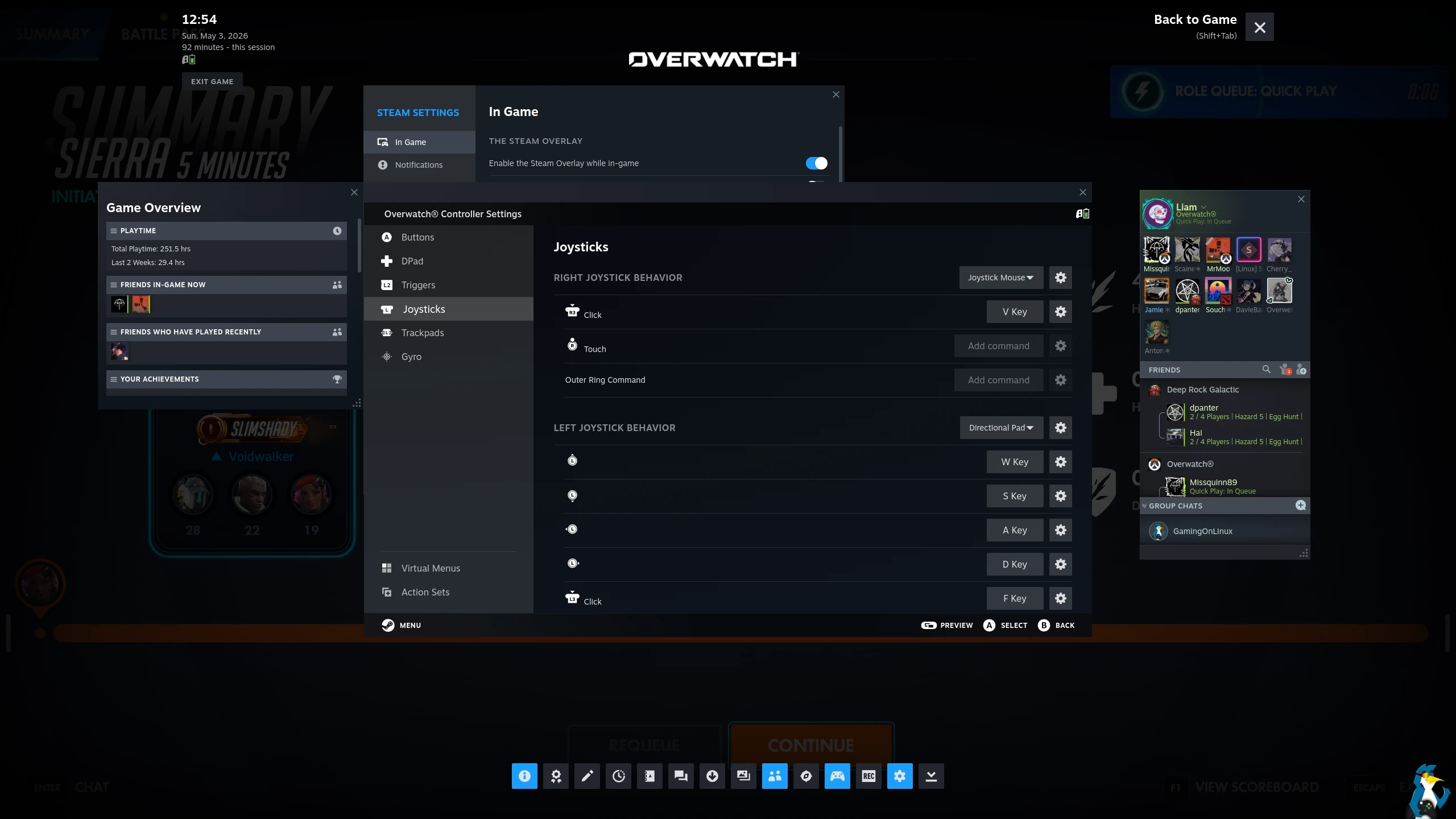
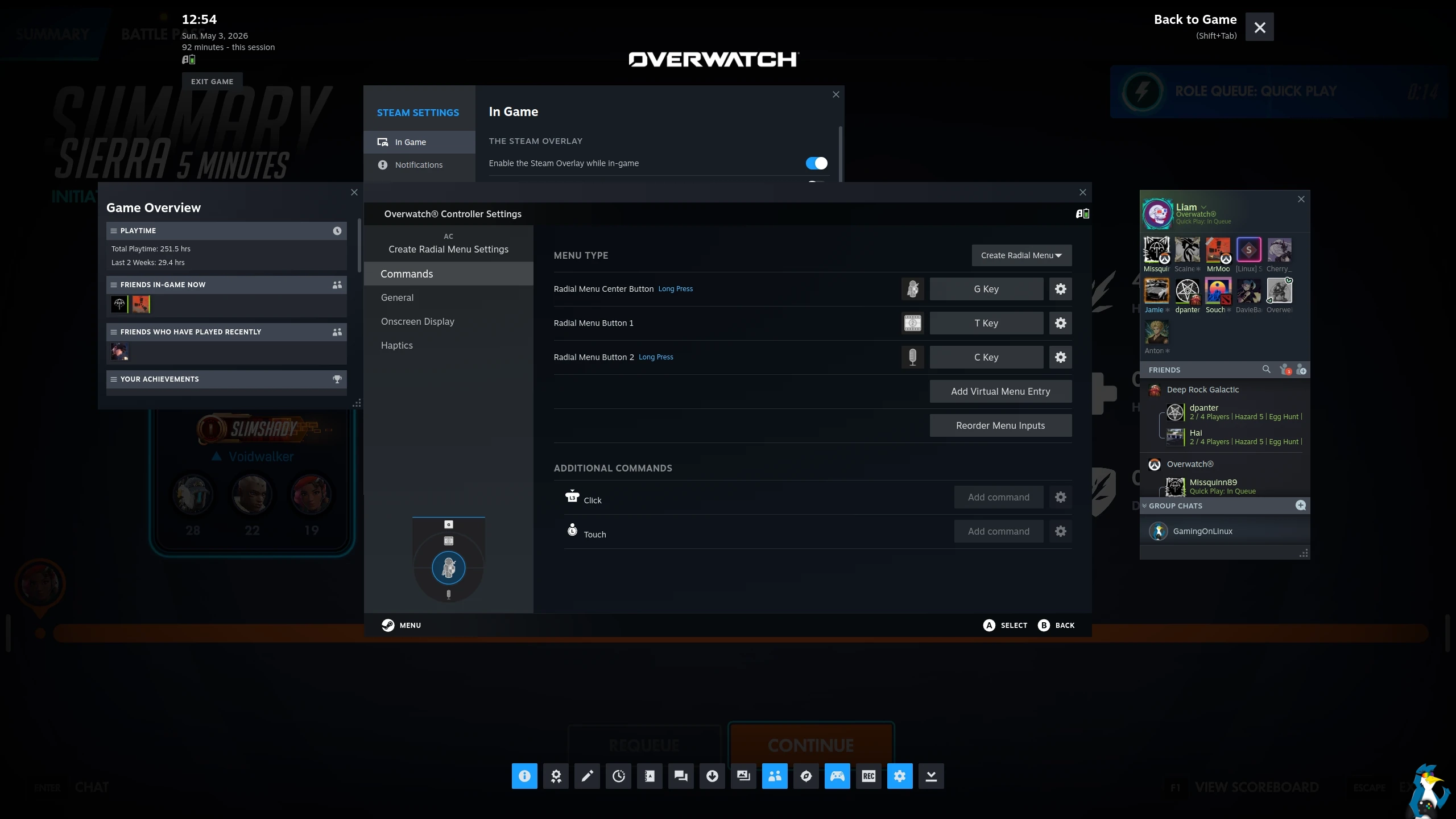
Pictured - Steam Input Configuration, Desktop Steam Overlay
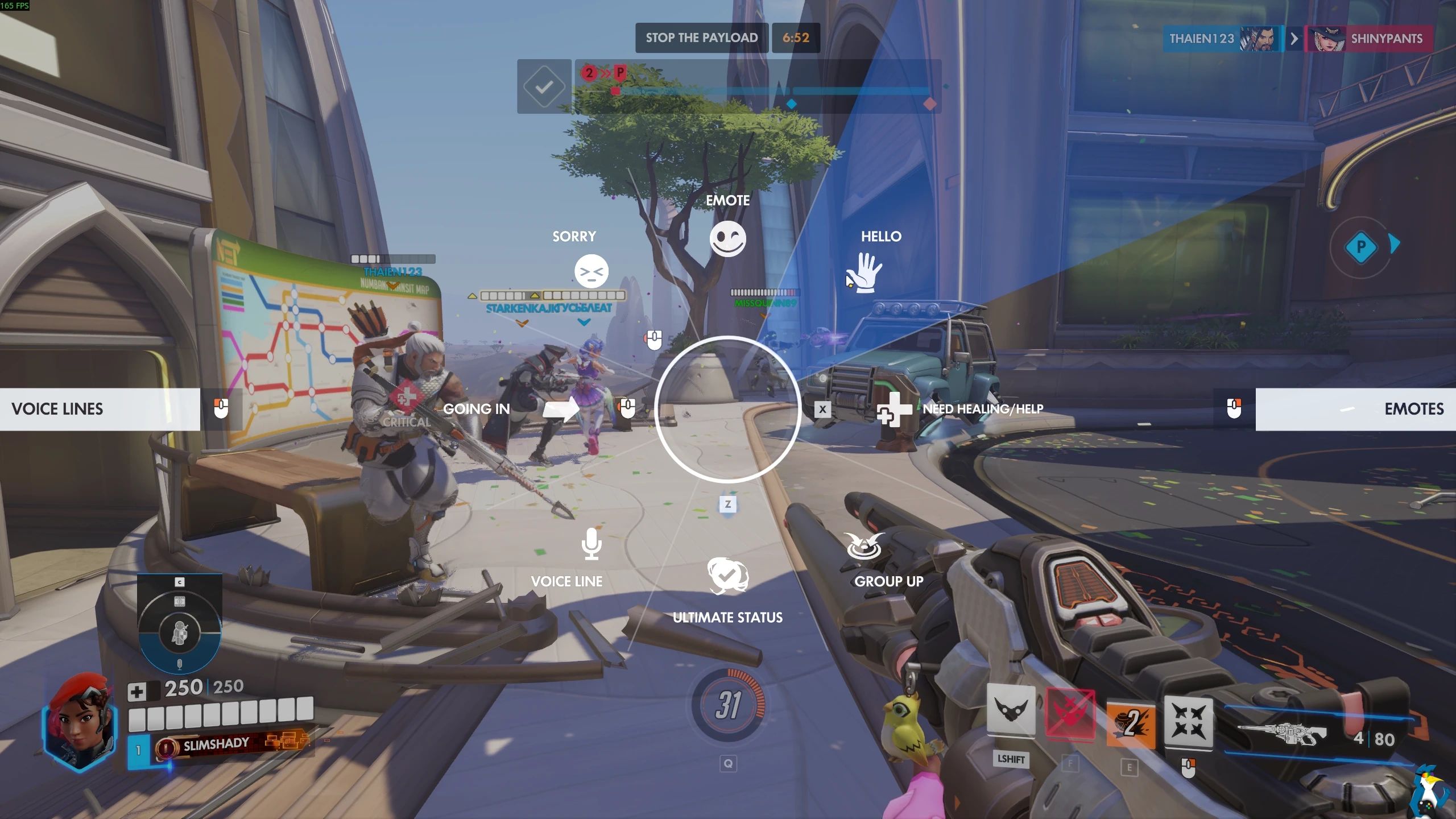
Pictured - Overwatch, see the Virtual Menu in the bottom left above the health bar.
Having proper Trackpads integrated is also a godsend. Valve did it right this time having both the sticks and pads, and it really does make a living room TV PC or handheld hooked up to a TV so much easier to use. It makes Desktop Mode on the likes of the Steam Deck much nicer to use from the couch, along with the times some nuisance launchers need a quick bit of mouse input, it has been a breeze to do everything with it. Just take into account the permissions pop-up caveat above on Desktops.
Desktop Mode does also have its own unique separate layout that you can fully configure, which is weirdly hidden behind an advanced options button.
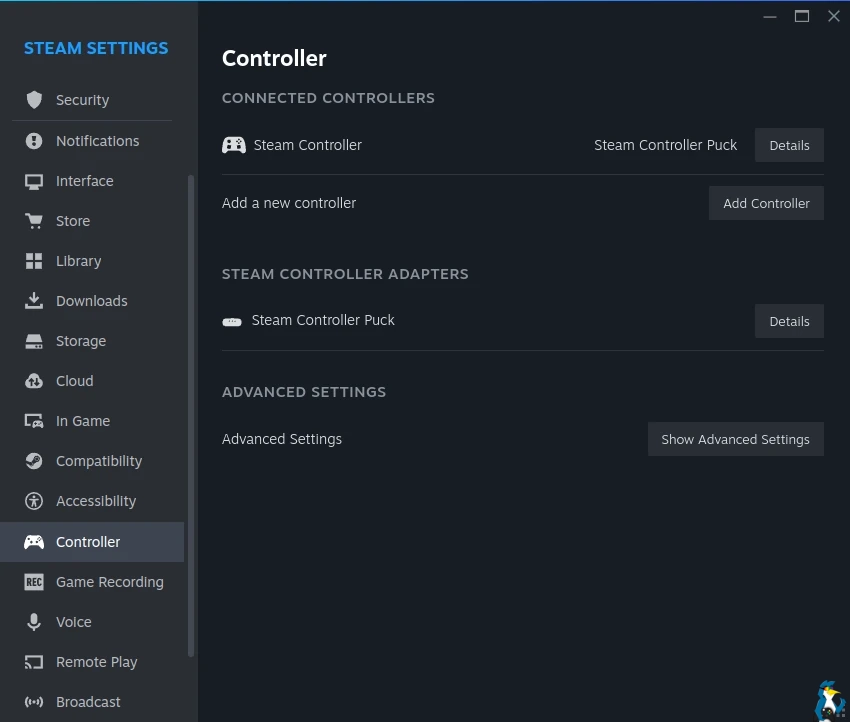
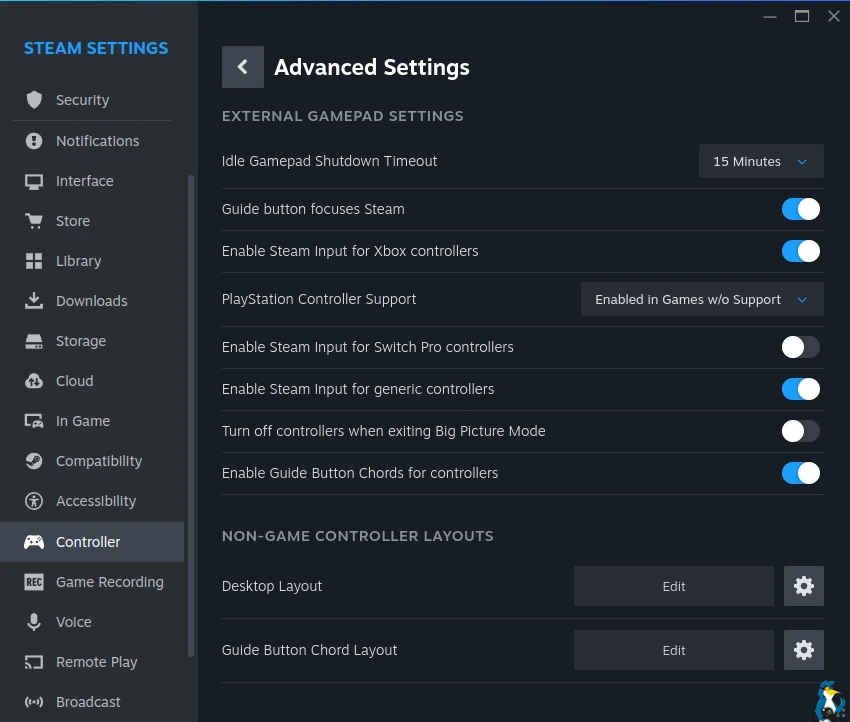
Here you can adjust it completely to your own liking, to make using it with a Desktop (or in Desktop Mode on SteamOS) a lot easier. No problems there at all. It may be just a little confusing to remember all the keybinds, but since you can set it up how you want eventually memory will just kick in - but it really does make controlling various devices much easier overall thanks to the Trackpads.
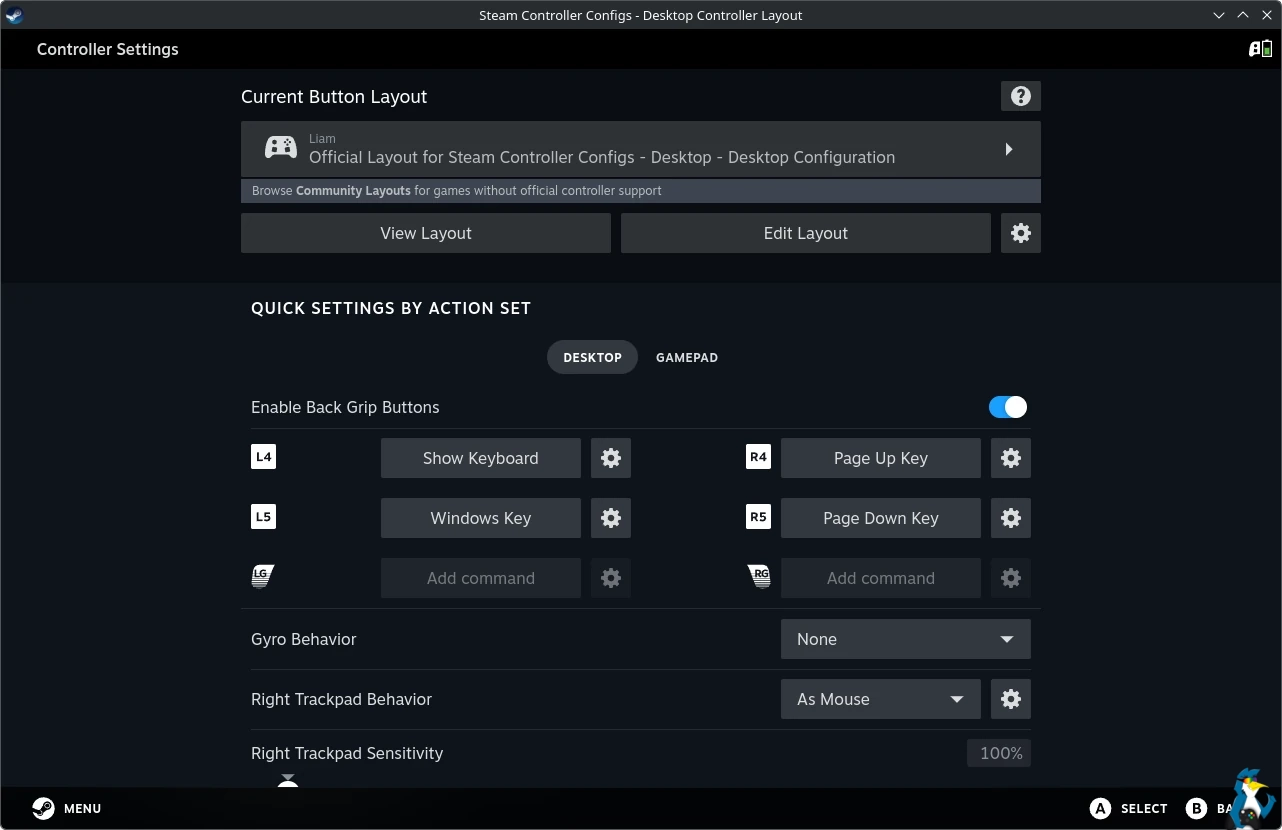
Desktop Mode configuration also synced fine between my Desktop and Lenovo Legion Go with Bazzite. Saves nicely to the Steam Cloud for you to have the same configuration between machines.
It's also one of the most complicated controllers to use. As a basic gamepad it is genuinely good. But, to get the most out of the various inputs to use it full you need to dive into the depths of Steam Input - which is in a lot of ways pretty convoluted to learn outside of setting basic button inputs. I think Steam Input needs a real pass over the UI to make it more intuitive and to just be explained a lot better. Things like the Action Sets and Layers especially need to be made clearer and simpler, as they are really powerful but take too long to understand to get it right to swap between entire configurations.
I tested to see if it would wake my Fedora KDE desktop from sleep, but sadly it doesn't seem able to do so. I also tested it with the Lenovo Legion Go that has Bazzite installed, it also does not wake it up.
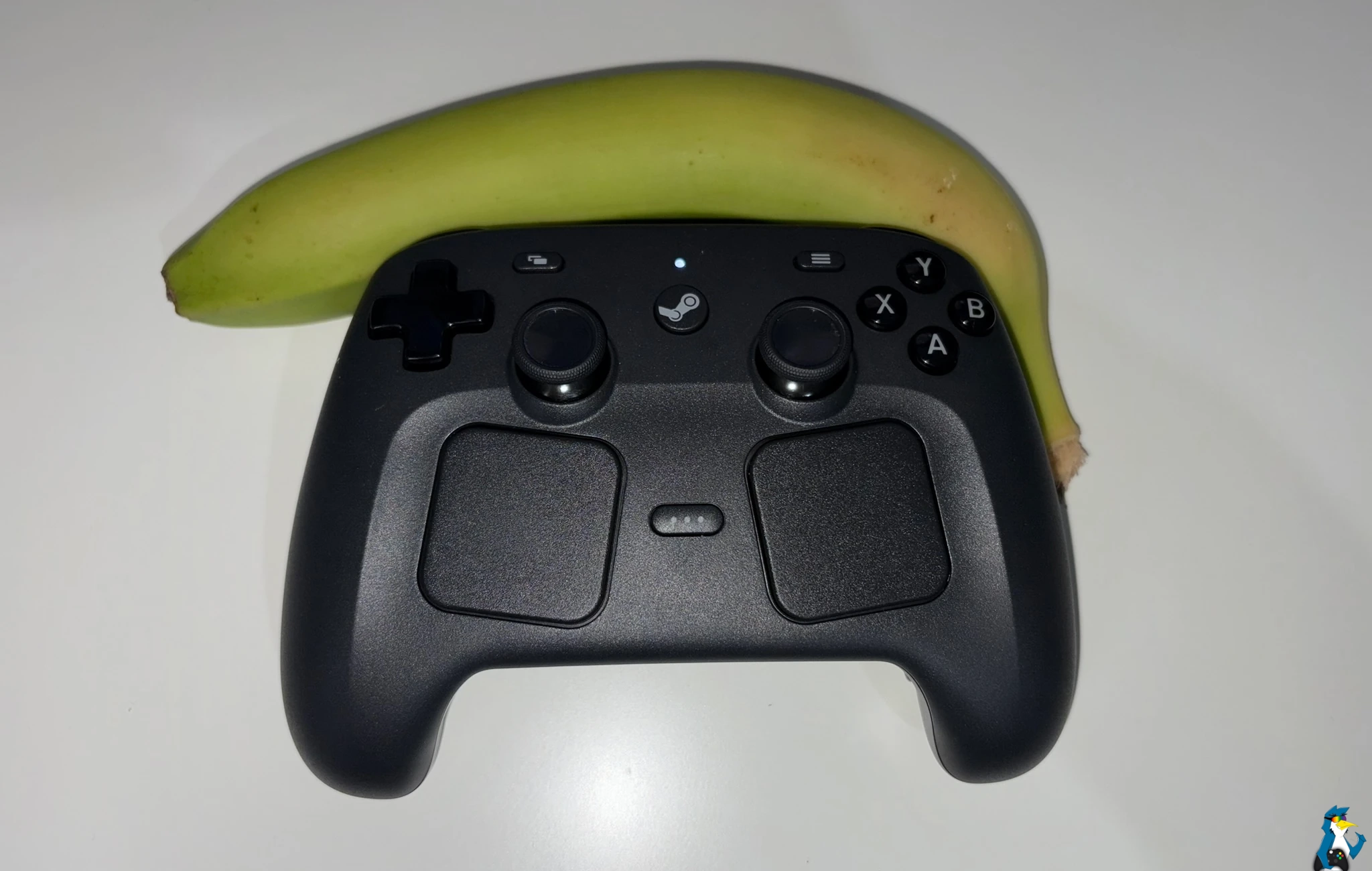
Banana for scale, obviously
Paired With The Steam Deck (SteamOS)
Can it turn on a sleeping Steam Deck when it's connected via the 2.4GHz Wireless Puck? Yes! You don't need to be in Bluetooth mode for this. This makes it an excellent choice to use when you're docking your Steam Deck. We knew it would work on the Steam Machine but it wasn't clear if that would on the Steam Deck too - but thankfully it does.
One quirk here though is Desktop Mode. You get "lizard mode" (basic USB device) input when you first get into Desktop Mode, then Steam loads up and it's supposed to swap to Steam Input. However, I have multiple accounts on here (family…) and suddenly no input at all when the account picker appears:
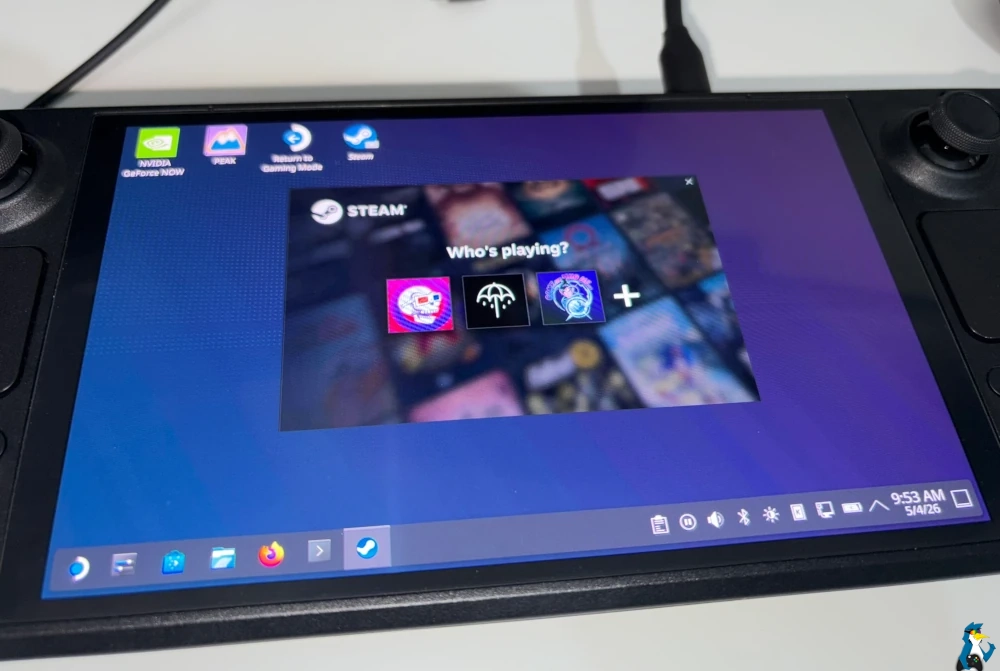
But, if you press the Steam button, it will jump in Desktop Big Picture Mode and input then works to select your account. You can then just leave Desktop Big Picture Mode and input continues working since you're logged in. I also figured out that if you hold the Steam button with your thumb on the right Trackpad for mouse movement (so no going into Big Picture Mode), input then comes alive again. How odd.
It's a small thing, but an accessibility issue with the handover on the input types that hopefully Valve can fix, to give you some basic Steam Input on the account screen in Desktop Mode. Or, actually keep the selected account you already picked in Gaming Mode logged in when you jump into Desktop Mode. Hopefully Valve will sort something for it in updates.
The Steam Controller will also auto turn off when you put the Steam Deck to sleep.
Using The Steam Controller Completely Outside Of Steam
This is another big concern I've seen from a lot of people, and I've been asked repeatedly about ensuring this bit is covered. So here we go - the controller is designed primarily for Steam. It is the Steam Controller after-all, and so to get all the features it requires Steam Input. However, at least on the newly released Fedora KDE 44, the system does appear to detect it as a basic gamepad out of the box.
KDE Plasma settings:
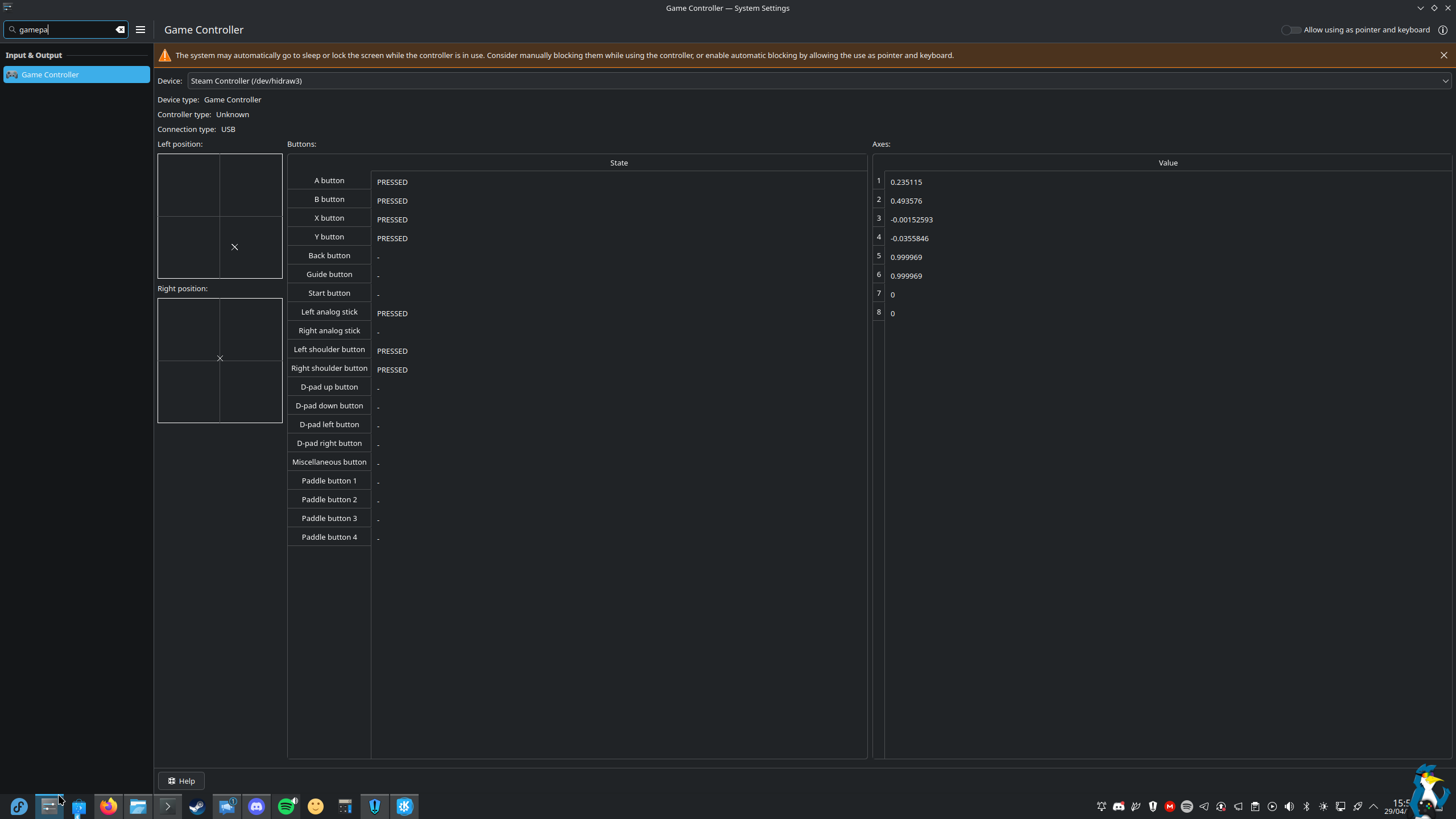
You can see there in the shot above it is detected. I held a few buttons and moved the left thumbstick for the screenshot to show the inputs are detected correctly. Even the back grip buttons are correctly detected when pressed. But that's system-level, what about actual games?
Using the excellent Heroic Games Launcher for GOG / Epic Games on Linux, I installed LIMBO from GOG with GE-Proton and it worked great even with vibration.
Booting up the newer updated editions of DOOM + DOOM 2 from Nightdive Studios (again via GOG) using GE-Proton, and the Steam Controller worked properly as expected with vibration again.
Trying with Absolute Drift with the Native Linux version, and here it was picked up as a keyboard / mouse. Changing Absolute Drift over to use GE-Proton, and it then worked properly as a gamepad.
Trying a more modern Native Linux version, I also picked up Hollow Knight: Silksong on GOG to see if a more recent Native Linux build worked with it outside of Steam. Sadly, here again it was picked up as a mouse / keyboard. Silksong claimed no controller was detected. Swapping it over to GE-Proton, and then Silksong detected the Steam Controller as a generic gamepad and was perfectly playable.
Rocket League also worked just fine via the Heroic Games Launcher with it acting like a basic controller.
What about plain old Wine? Well, it works there as a basic gamepad too. Simply doing the most basic install of Wine I could on Fedora KDE (dnf install wine), and then going back to Hollow Knight: Silksong running the Windows installer from GOG and the Steam Controller worked like a traditional gamepad here too.
Something to note - the trackpads and back grip buttons don't seem to work outside of Steam in games with GE-Proton / Wine though, as it just seems to act like a plain Xbox styled controller.
So from my testing it seems if you're using Proton / GE-Proton or plain Wine for games, the Steam Controller will work as a basic gamepad outside of Steam on Linux. For Native Linux games, they may need some sort of controller database update or SDL updates to detect it properly. But it shows it's entirely possible if even plain Wine can do it.
The original Steam Controller actually had a community-made user-mode driver and UI for managing it on Linux called "SC Controller", so perhaps we might see something like that again in future.
Non-Steam Games Added To Steam Or Just With Steam Open
You can also add games and applications into Steam directly to launch through Steam, to then enable full Steam Input support and get all features.
What's also interesting on Linux, is that with Steam just being open in the background the controller will automatically use Steam Input and allow you to switch directly between Desktop and Gamepad modes just by holding down the START button. The Steam Deck in Desktop Mode works exactly the same.
This way, you can still use it as a full gamepad with Steam Input without needing to launch anything via Steam directly. But, adding things into Steam does allow for more direct configuration.
Testing with the GeForce NOW Linux Beta app NOW Linux Beta app launched directly (not added to Steam), I was able to play Diablo II: Resurrected – Infernal Edition using the gamepad controls just fine. Although, inside GeForce NOW I had to rebind the GFN Overlay from holding START to holding LB + SELECT to not have the Steam Controller keep switching between Desktop / Gamepad modes. Other than that, it seemed to work rather well here too.
I also tested quite a lot of rounds of Fortnite the same way with the Steam Controller via the GeForce NOW app. With Steam just open in the background - and no issues at all. Felt really good here, and with the trackpads enabling me to pin-point heads there were plenty of Victory Royale's had.
Initial Verdict
It's certainly not the cheapest out there, but it is a thoroughly feature-filled controller that's PC-first (or should I say Steam-first specifically) that has great battery life and is incredibly comfortable. It's pretty much everything I've wanted in a controller. To have close to all the features and buttons the new Steam Controller has, you would likely have to go for something like the DualSense Edge or Xbox Elite controller - both of which are more expensive. With the added trackpads here to enable playing more types of games comfortably from the couch.
Currently I have: 8bitdo Ultimate, 8bitdo Ultimate 2, PowerA Ops v1, GameSir Nova Lite, Stadia, original Steam Controller, Xbox (Series X) and a few others - all of them have been sent to the retirement shelf. I have no need for any of them now, nor do I want to use them with the new Steam Controller available. They are all just far outclassed.
With it having TMR joysticks too, it should last a really long time. Hopefully stick drift will be a thing of the past. You'll most likely wear out the actual thumb grips a very long time before the sticks themselves give you problems.
Very impressive with a price to match the specifications. The true pro controller for PC gaming. So far I think it's great value overall.
I'm buying a second one so I don't have to fight anyone here for it.
Where To Buy
The Steam Controller is available for US: $99 USD / Canada: $149 CAD / EU: €99 / UK: £85 / AUD 149 / PLN 419. You can buy it direct from Steam, or Komodo Station specifically for Asian regions.
That's it for now from GamingOnLinux, since this is just an initial look and my time with it has really only just begun. And I fully expect like all Valve hardware for it to evolve over time, including adding new actions to set for inputs. I'm eager to see what Valve do with it. Especially once the Steam Machine and Steam Frame arrive.
If there are any bits you want tested more fully on Linux / SteamOS - do leave a comment.





See more from me



 You can also find comments for this article on social media:
  Mountain Man 4 hours ago

Last edited by Mountain Man on 4 May 2026 at 7:16 pm UTC

Quoting: EagleDeltaThat's not it, I had the amount in Steam Wallet (credit card was processed earlier today) and it still failed for the first 8 minutes for me.Quoting: ThibugPretty sure we broke Steam the moment it got released, they never learn 😆It's likely not Valve. The only part of Steam that broke was payment. Like most vendors, they are not likely doing payment processing in-house.... meaning they are limited by whatever bandwidth their 3rd party processor(s) gives them AND those 3rd parties aren't going to take down other customers just to account for Valve's increased traffic.

Quoting: tarmo888Gyro as Joystick Camera on the other hand, just does micro-adjustments by default - adjustments that joystick isn't accurate enough to do.I've had the opposite experience. Gyro to Mouse works great once you set it up right, but I've never been able to get Gyro to joystick camera to work the way I'd like. It feels floaty to me, and if the game you're playing uses a built in deadzone, you'll always have trouble zeroing in those super tight aims.

Quoting: Renzatic GearLuckily, most games have deadzone setting and now it can be lowered a lot thanks to TMR joysticks.Quoting: tarmo888Gyro as Joystick Camera on the other hand, just does micro-adjustments by default - adjustments that joystick isn't accurate enough to do.I've had the opposite experience. Gyro to Mouse works great once you set it up right, but I've never been able to get Gyro to joystick camera to work the way I'd like. It feels floaty to me, and if the game you're playing uses a built in deadzone, you'll always have trouble zeroing in those super tight aims.


Quoting: tarmo888That's a shame, we've been getting lots of new binary options in new controllers but no new analog inputs.Quoting: GoEsrDo you know if the capacitive grips have configuration or are they just binary?Their newest video shows the configuration https://youtu.be/a55UIaiTE-A?t=162
 Liam Dawe 2 hours ago

Quoting: sarmadYou have a typo in the title: you wrote "out now" instead of "out of stock".Don’t scare me like that 😅



Quoting: Liam Daweit's not to scary you, it's a harsh realityQuoting: sarmadYou have a typo in the title: you wrote "out now" instead of "out of stock".Don’t scare me like that 😅

Quoting: Renzatic GearJust keep hammering the continue button until it lets you through. If you end up accidentally ordering 300 extra controllers, sell the rest on Ebay with a $5 markup.Just checked on eBay... Of course there is "that guy."
...no more than $5 though. Don't be that guy.
[THAT Guy Posting on eBay](https://ebay.us/m/hwWJn1https://ebay.us/m/hwWJn1)
There were three active offers when I checked...
Of course, I had to be that guy too. Put in an offer of $100.

 Patreon
 PayPal
 How to setup OpenMW for modern Morrowind on Linux / SteamOS and Steam Deck
 How to install Hollow Knight: Silksong mods on Linux, SteamOS and Steam Deck